TAI Vision (Meta Raybans)
TAI Vision connects supported Meta Ray-Ban glasses to Treedis through an iPhone companion. Choose your workspace and scanned space, ask TAI for help, navigate to named tags and follow a published Flow. On supported Meta Ray-Ban Display devices, the lens presents compact directions, step content and TAI captions.
Availability and review. Glasses, companion, account access and the selected space must be set up together. Display instructions require a supported display device. Navigation requires a prepared spatial map and successful localization.
Watch the process explainer
This narrated animation explains the process. It is an overview, rather than a recording of the product interface.
Use the chapter sections in the progress bar to revisit a step. English subtitles are on by default; choose Hebrew in the captions settings.
A simple example
Open the plant-room space on your phone, connect the glasses and localize. Start the P-101 inspection Flow. Follow directions to the first step, listen to its instructions, then use the supported glasses control to continue when you are ready.
The user flow
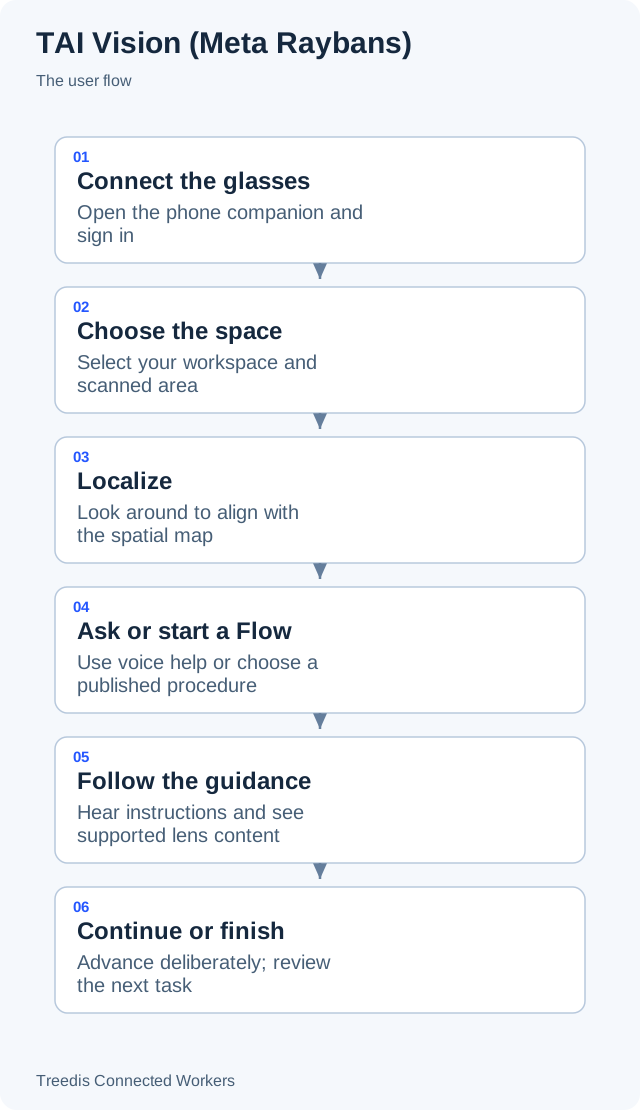
- Connect the glasses. Open the phone companion and sign in.
- Choose the space. Select your workspace and scanned area.
- Localize. Look around to align with the spatial map.
- Ask or start a Flow. Use voice help or choose a published procedure.
- Follow the guidance. Hear instructions and see supported lens content.
- Continue or finish. Advance deliberately; review the next task.
How it works
The diagram below shows the general information flow. Open it to view the labels at full size.
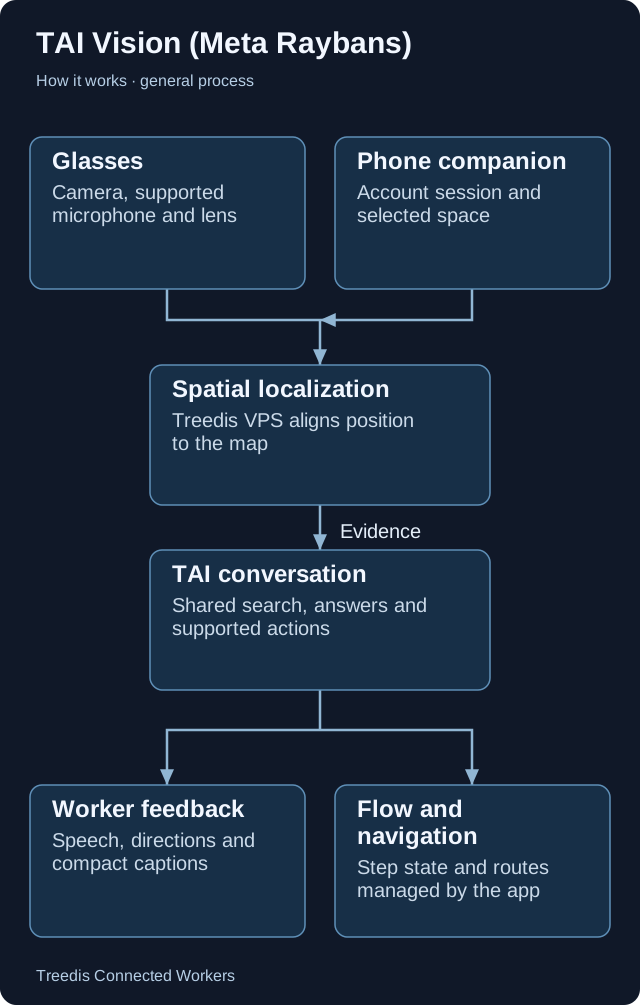
- Glasses. Camera, supported microphone and lens.
- Phone companion. Account session and selected space.
- Spatial localization. Treedis VPS aligns position to the map.
- TAI conversation. Shared search, answers and supported actions.
- Worker feedback. Speech, directions and compact captions.
- Flow and navigation. Step state and routes managed by the app.
Technical overview
The phone companion coordinates the glasses connection, Flow state, voice interaction and the selected Treedis space. Treedis VPS provides spatial localization. The shared TAI conversation service supplies answers and supported actions. These are separate services with distinct responsibilities.
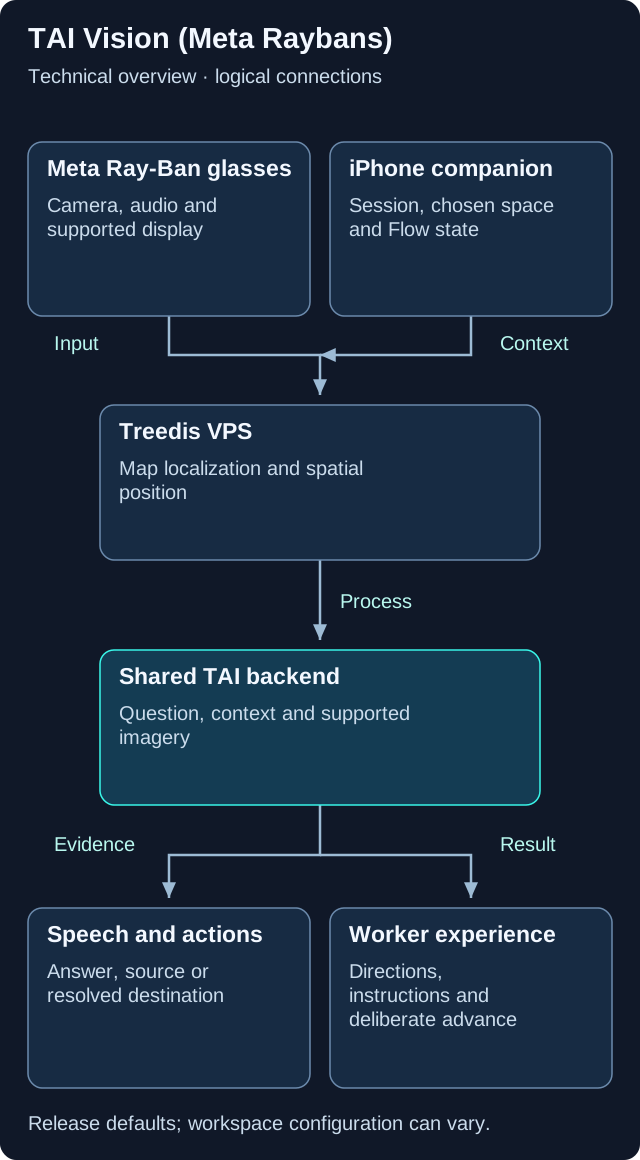
This is a logical overview. Open the diagram for full-size labels. Tool calls and searches can repeat during a request.
Models and components
| Role | Release default or method | What it does |
|---|---|---|
| Conversation and retrieval | Shared TAI Chat route |
Uses the configured backend provider and supported context. |
| Voice response | Gemini Live or TAI speech endpoint |
The companion plays supported returned audio. |
| Spatial positioning | Treedis VPS |
Matches the glasses camera to the selected map; independent of the language model. |
Context from the companion
The selected space, current Flow step and available position help scope a question. Supported visual questions can include glasses imagery.
Directions and task progression
The app resolves supported tag destinations and maintains the route and current Flow step. Localization establishes spatial position; the language model does not perform tracking.
Different wearable apps
TAI Vision is the Meta Ray-Ban companion experience. XREAL AURA is documented in its own app category, with different device controls and spatial capabilities.
Version note. The companion behavior is based on the tai-vision source; shared backend defaults are based on CW release/1.0.1. Model names describe the defaults in that release. Workspace provider choices, deployment settings, feature availability and later releases can change the actual model or path.
What your team controls
| TAI helps with | Your team controls |
|---|---|
| TAI answers workplace questions and returns supported actions through the companion. | Your team prepares maps, publishes procedures and checks device setup; the worker controls progression. |
Data and asset tips
- Prepare a usable spatial map. Check localization in the real area. Keep mapped paths and destination tags aligned with the workplace.
- Name tags clearly. Use a readable destination name and the same equipment code as the asset record.
- Write concise steps. Give each step one clear task, useful instructions and a deliberate completion point.
- Attach step media. Link the right photo or audio recording to the step it explains. Confirm it works on the supported glasses.
- Check the complete route. Publish reviewed Flows and test step destinations, directions and controls on the actual device.
FAQ
Does every Meta Ray-Ban model show a display?
No. Lens content is available only on supported display glasses. Confirm the supported hardware and app setup with your administrator.
Does a Flow advance by itself?
The worker advances through the supported control or phone action. Read and complete the current task before continuing.
Can TAI use a camera image?
TAI Vision can supply supported glasses imagery for visual questions. This is separate from the spatial localization path and depends on the app and device setup.
Related guides
TAI overview Choose the right TAI feature and understand how the parts connect. Knowledge and search Prepare useful sources and understand search readiness.Need help?
Ask your workspace administrator about enabled features and source access. For help with TAI, contact support@treedis.com.