XREAL AURA
XREAL AURA is the Connected Workers app experience for supported XREAL glasses. It brings workplace records, spatial tags and navigation into the working environment. TAI voice assistance is one capability inside the app; XREAL AURA has its own setup and spatial experience.
Availability and review. Available actions depend on your device, workspace and spatial setup. Voice help and spatial tracking are separate capabilities. Do not assume the assistant automatically sees your live camera view.
Watch the process explainer
This narrated animation explains the process. It is an overview, rather than a recording of the product interface.
Use the chapter sections in the progress bar to revisit a step. English subtitles are on by default; choose Hebrew in the captions settings.
A simple example
After opening the intended area, say “Hey TAI” and ask about transfer pump P-101. Supported navigation actions use the equipment’s actual tag and the selected location scope.
The user flow
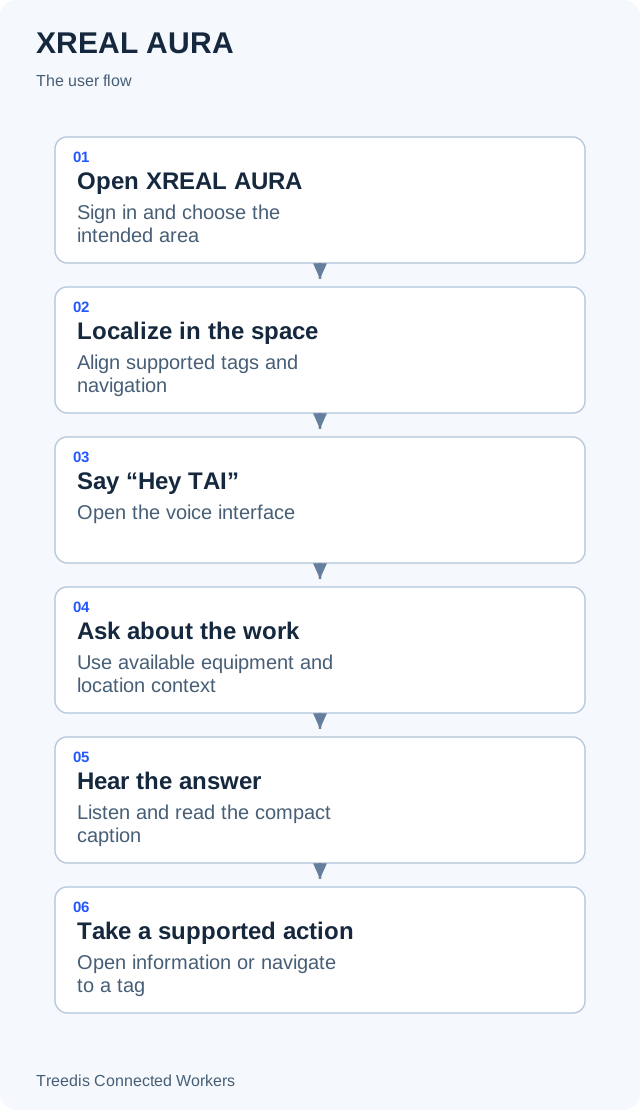
- Open XREAL AURA. Sign in and choose the intended area.
- Localize in the space. Align supported tags and navigation.
- Say “Hey TAI”. Open the voice interface.
- Ask about the work. Use available equipment and location context.
- Hear the answer. Listen and read the compact caption.
- Take a supported action. Open information or navigate to a tag.
How it works
The diagram below shows the general information flow. Open it to view the labels at full size.
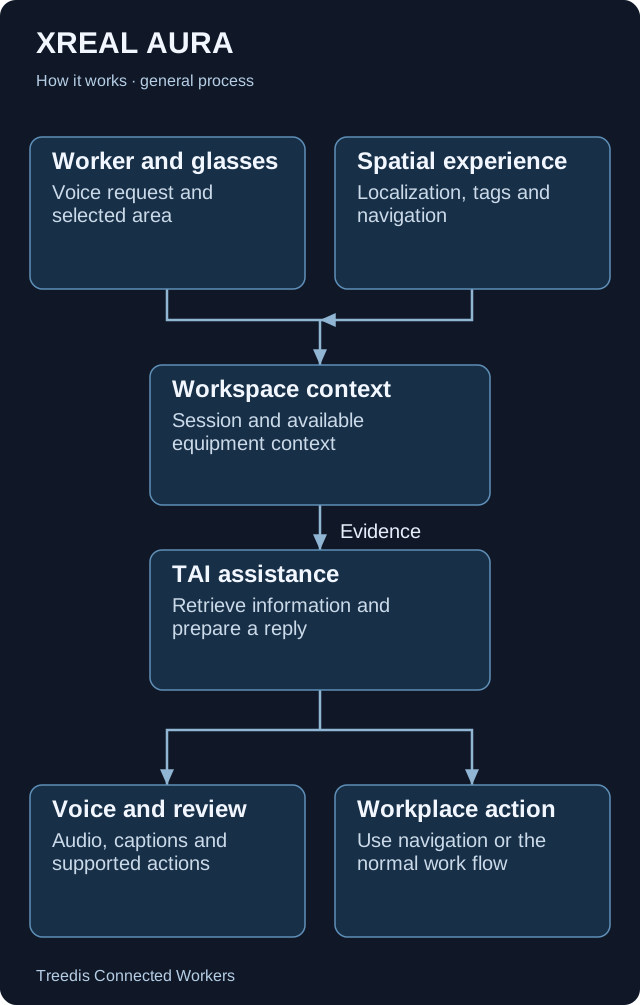
- Worker and glasses. Voice request and selected area.
- Spatial experience. Localization, tags and navigation.
- Workspace context. Session and available equipment context.
- TAI assistance. Retrieve information and prepare a reply.
- Voice and review. Audio, captions and supported actions.
- Workplace action. Use navigation or the normal work flow.
Technical overview
XREAL AURA is a Connected Workers app experience for glasses. Its spatial layer handles localization, tracking and supported scene actions. The TAI voice route uses the shared conversation backend with workspace and location context.
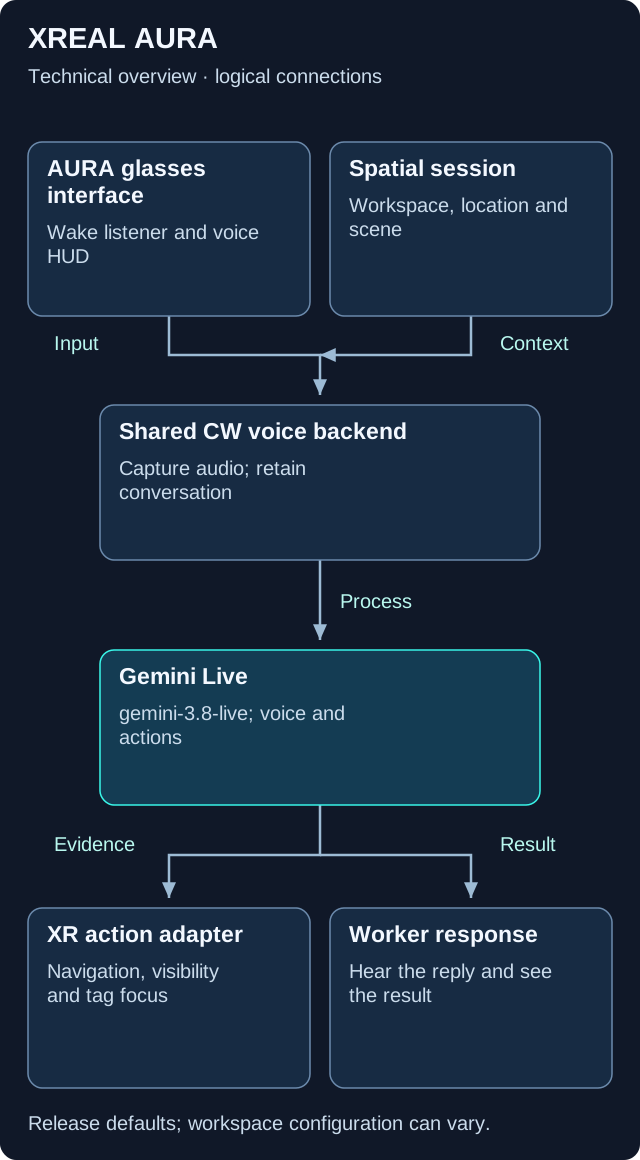
This is a logical overview. Open the diagram for full-size labels. Tool calls and searches can repeat during a request.
Models and components
| Role | Release default or method | What it does |
|---|---|---|
| Voice-only conversation | gemini-3.8-live |
Default Gemini Live route for supported voice sessions. |
| Extended-thinking option | gemini-3.8-live-extended-thinking |
Alternative voice route when selected. |
Inside cw-app
XREAL AURA uses the same native Connected Workers app with an optional XR backend capability. The VPS spatial layer handles localization, tracking, tags and navigation; it is separate from language-model reasoning.
Wake phrase to answer
The local “Hey TAI” listener opens the voice experience. The app captures a spoken question and sends it through the shared voice-only backend. Gemini Live can return audio, captions and supported action metadata.
Supported scene actions
The release adapter supports starting or stopping navigation, changing element visibility and focusing a tag. Only actions supported by the device and scene can be applied.
Camera tracking and assistant input
Camera-based tracking supports spatial positioning. It does not mean TAI automatically receives a live camera stream. This release’s XR action adapter does not include a screenshot-capture action.
Version note. AURA app behavior is based on cw-app release/2.0.0; its shared TAI backend is based on CW release/1.0.1. Model names describe the defaults in that release. Workspace provider choices, deployment settings, feature availability and later releases can change the actual model or path.
What your team controls
| TAI helps with | Your team controls |
|---|---|
| TAI provides voice help and supported actions using available workspace information. | Your team prepares spatial data, checks localization and follows the normal review process for work changes. |
Data and asset tips
- Prepare the correct spatial map. Use a ready scan and the correct area. Check localization on the real device where people will work.
- Link assets to the intended tags. Keep each equipment record connected to its actual 3D tag. Check the tag position.
- Keep location scope current. Use a clear area hierarchy and correct asset assignments. Select the intended area before asking or navigating.
- Use names people can say. Keep a readable equipment name alongside its stable code. Ask for the specific item or task.
- Keep knowledge useful for voice. Link approved, concise procedures to the equipment. Review record changes through the normal work process.
FAQ
Is XREAL AURA a TAI feature?
XREAL AURA is an app experience with its own workspace and spatial interface. It can use TAI for voice assistance, alongside its records, tags and navigation.
Does tracking mean TAI sees everything I look at?
No. Spatial tracking and visual input to the assistant are separate. Available visual input depends on the supported app and device path.
Can every answer start navigation?
Only supported navigation actions with a resolved destination can do so. Correct equipment-to-tag links and location scope matter.
Related guides
TAI overview Choose the right TAI feature and understand how the parts connect. Knowledge and search Prepare useful sources and understand search readiness.Need help?
Ask your workspace administrator about enabled features and source access. For help with TAI, contact support@treedis.com.