Background indexing
Background indexing prepares supported workspace content so TAI can find relevant passages later. It reads the source, extracts useful text and prepares search information. Supported changes can start indexing, while background checks help catch content that is missing or out of date.
Availability and review. Indexing is asynchronous. A file can be saved before its search information is ready. Source size, readability, format, settings and processing status can affect readiness.
Walkthrough images
Source processing and retrieval are separate parts of the information flow.
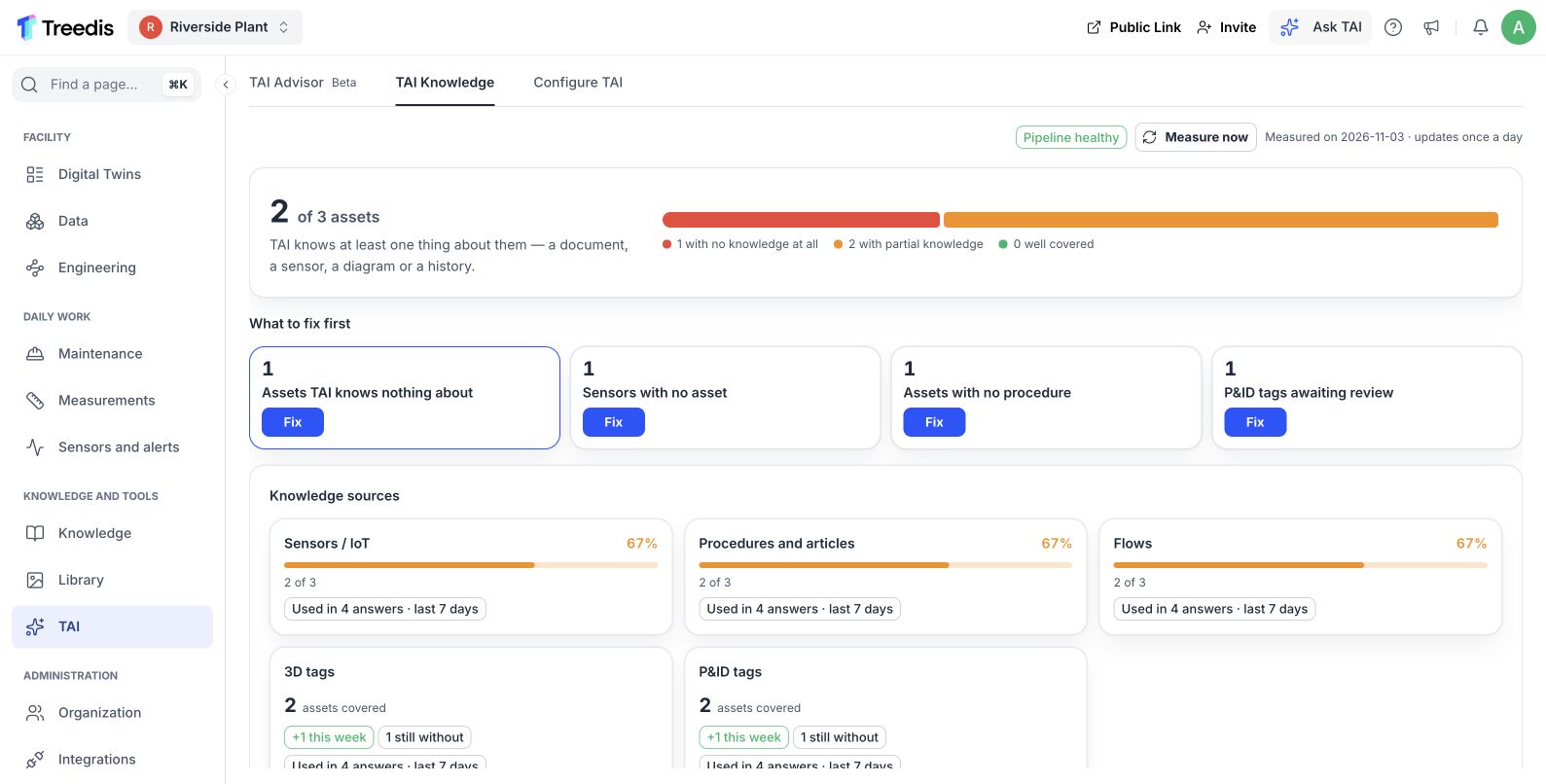
Background preparation makes readable passages available for retrieval. Open the image to read it at full size.
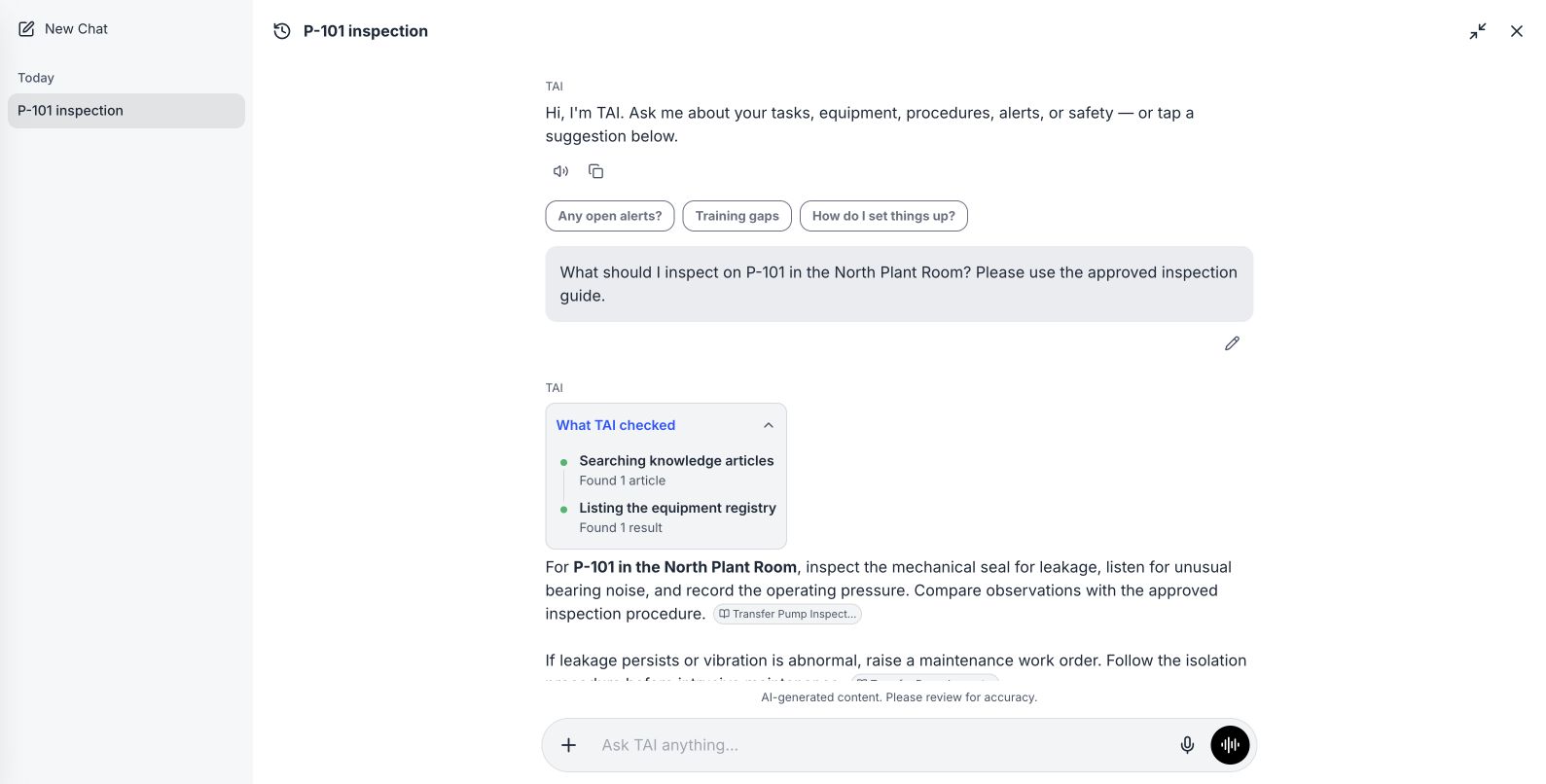
A question retrieves relevant evidence within its available scope. Open the image to read it at full size.
Watch the process explainer
This narrated animation explains the process. It is an overview, rather than a recording of the product interface.
Use the chapter sections in the progress bar to revisit a step. English subtitles are on by default; choose Hebrew in the captions settings.
A simple example
After your team uploads a revised P-101 manual, the file may be available to open before its new text appears in search. Check processing readiness when answers still point to older information.
The user flow
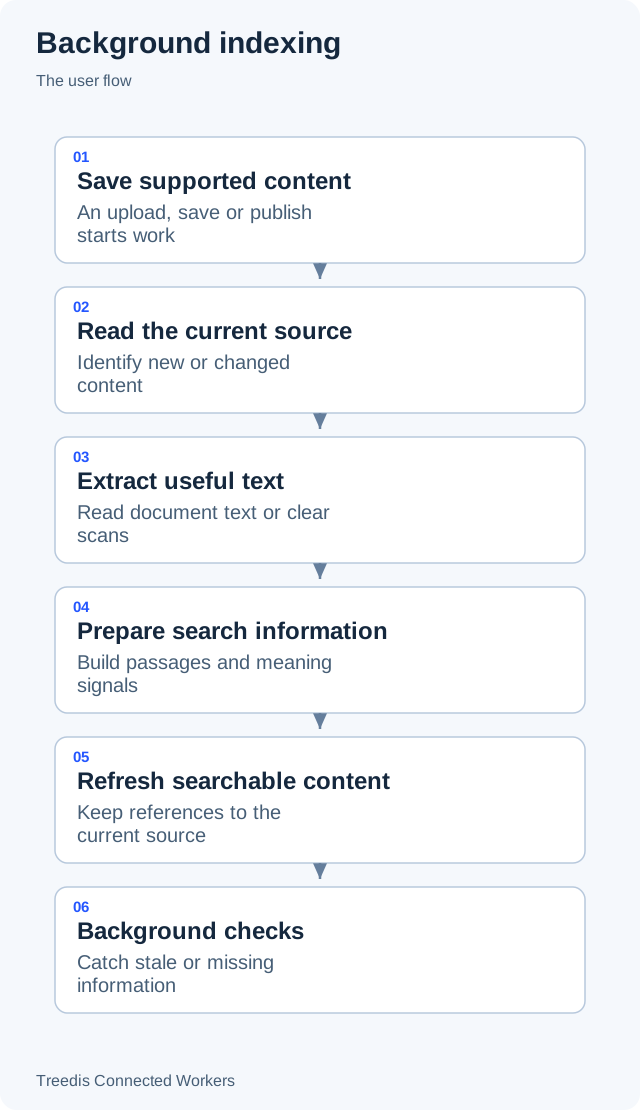
- Save supported content. An upload, save or publish starts work.
- Read the current source. Identify new or changed content.
- Extract useful text. Read document text or clear scans.
- Prepare search information. Build passages and meaning signals.
- Refresh searchable content. Keep references to the current source.
- Background checks. Catch stale or missing information.
How it works
The diagram below shows the general information flow. Open it to view the labels at full size.
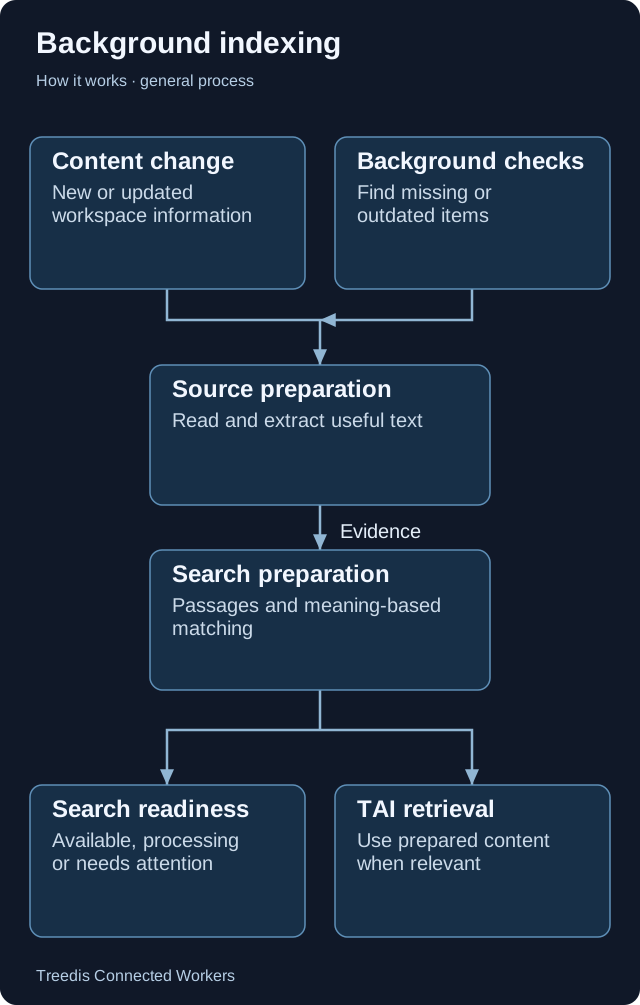
- Content change. New or updated workspace information.
- Background checks. Find missing or outdated items.
- Source preparation. Read and extract useful text.
- Search preparation. Passages and meaning-based matching.
- Search readiness. Available, processing or needs attention.
- TAI retrieval. Use prepared content when relevant.
Technical overview
Supported saves, publications and uploads can request indexing immediately. A separate background worker extracts text, splits it into passages and creates embeddings. Nightly reconciliation catches eligible changes that still need processing.
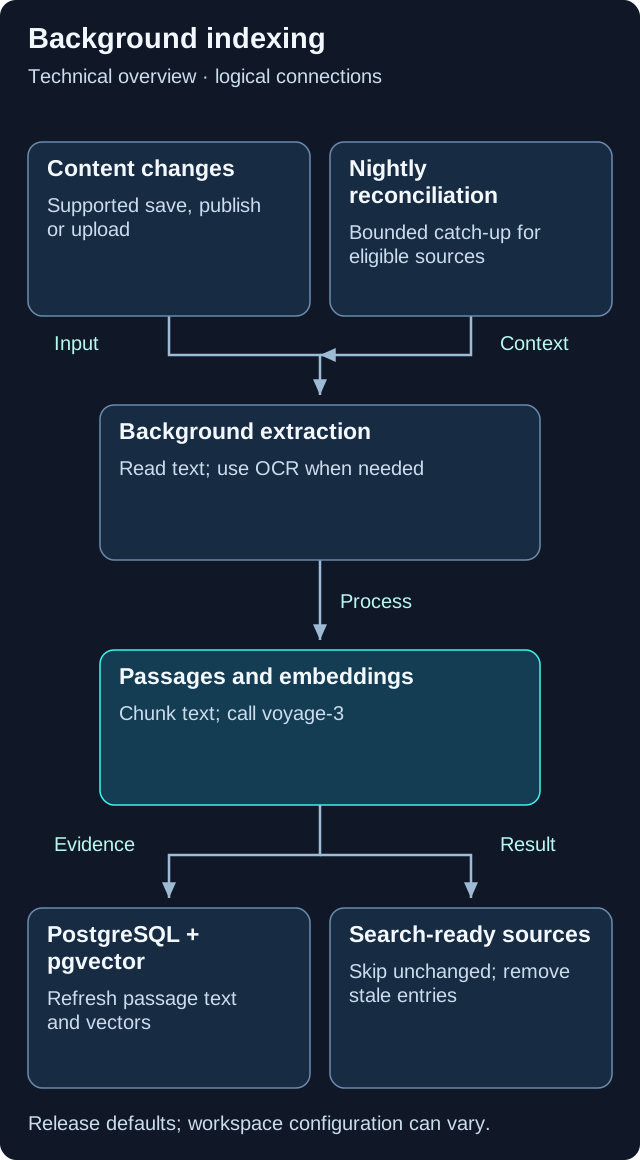
This is a logical overview. Open the diagram for full-size labels. Tool calls and searches can repeat during a request.
Models and components
| Role | Release default or method | What it does |
|---|---|---|
| Embeddings | voyage-3 |
Converts prepared passages into search vectors. |
| OCR when needed | gemini-3.5-flash |
Default text extraction model; deployment configuration can override it. |
Work happens asynchronously
The application requests background work after supported changes. Search readiness can lag a save or upload; it depends on the job finishing successfully. A nightly sweep is a catch-up mechanism, not a guarantee that every source is eligible.
From file to passage
Readable text is extracted directly when possible. OCR is used for supported scanned material. The default chunk target is 2,400 characters with 320 characters of overlap, so a sentence near a boundary keeps useful context. These are implementation defaults and can change.
From passage to search
voyage-3 creates the embeddings. The application stores the text, vectors and source references together, then refreshes the relevant search records. Query embedding work is separate from document indexing.
Updates and removals
Content hashes help skip unchanged material. Reconciliation refreshes changed sources and removes stale entries for deleted or no-longer-readable content. Feature flags and source settings apply; the library catch-up path is gated and assets can be excluded.
Checking a missing result
Check that the content is active and accessible, that the file has readable text, and that processing has completed. Adding the right asset or location link gives retrieval more useful context.
Version note. This overview is based on CW release/1.0.1. Model names describe the defaults in that release. Workspace provider choices, deployment settings, feature availability and later releases can change the actual model or path.
What your team controls
| TAI helps with | Your team controls |
|---|---|
| Background processing prepares and refreshes supported search content. | Your team supplies readable, current sources and resolves items that need attention. |
Data and asset tips
- Choose readable source formats. Use supported documents with selectable text when possible. Clear scans and images need readable markings.
- Replace obsolete material clearly. Keep revision names and source ownership clear. Avoid several indistinguishable copies of an outdated manual.
- Preserve useful structure. Headings, complete steps, equipment IDs and meaningful file titles improve the prepared text.
- Allow processing to finish. A successful save and a ready search index are different stages. Check status before testing a newly uploaded source.
- Resolve sources that need attention. Review unsupported, unreadable or stale items and correct the source or upload rather than assuming it was indexed.
FAQ
Why can I open a file but TAI cannot find its new contents yet?
The original file and its search preparation are separate. Processing may still be running, or the source may need attention.
Are videos indexed in the same way as text documents?
Do not assume that every media format follows the text search path. Video procedure generation and document indexing are different operations.
Are changes always reflected immediately?
No. Timing depends on the source and the available processing path. Background checks help refresh supported content over time.
Related guides
TAI overview Choose the right TAI feature and understand how the parts connect. Knowledge and search Prepare useful sources and understand search readiness.Need help?
Ask your workspace administrator about enabled features and source access. For help with TAI, contact support@treedis.com.