TAI Linking
TAI Linking helps your team close gaps between equipment and related information. Suggestions can connect sensors, knowledge, 3D tags or diagram information to the right equipment. Review the available evidence and choose the correct connection.
Availability and review. Link suggestions use the information available for each source type. Some diagram matches can be automatic. Review uncertain suggestions and alternative matches carefully.
Watch the product walkthrough
From disconnected sources to equipment context. Follow the complete process in this guided product demonstration, with clear narration, readable screens and a result at the end.
Use the chapter sections in the progress bar to revisit a step. Choose English or Hebrew in the captions settings, and use fullscreen to inspect interface details. The walkthrough images below also open at full size.
Walkthrough images
Key steps from the product demonstration.
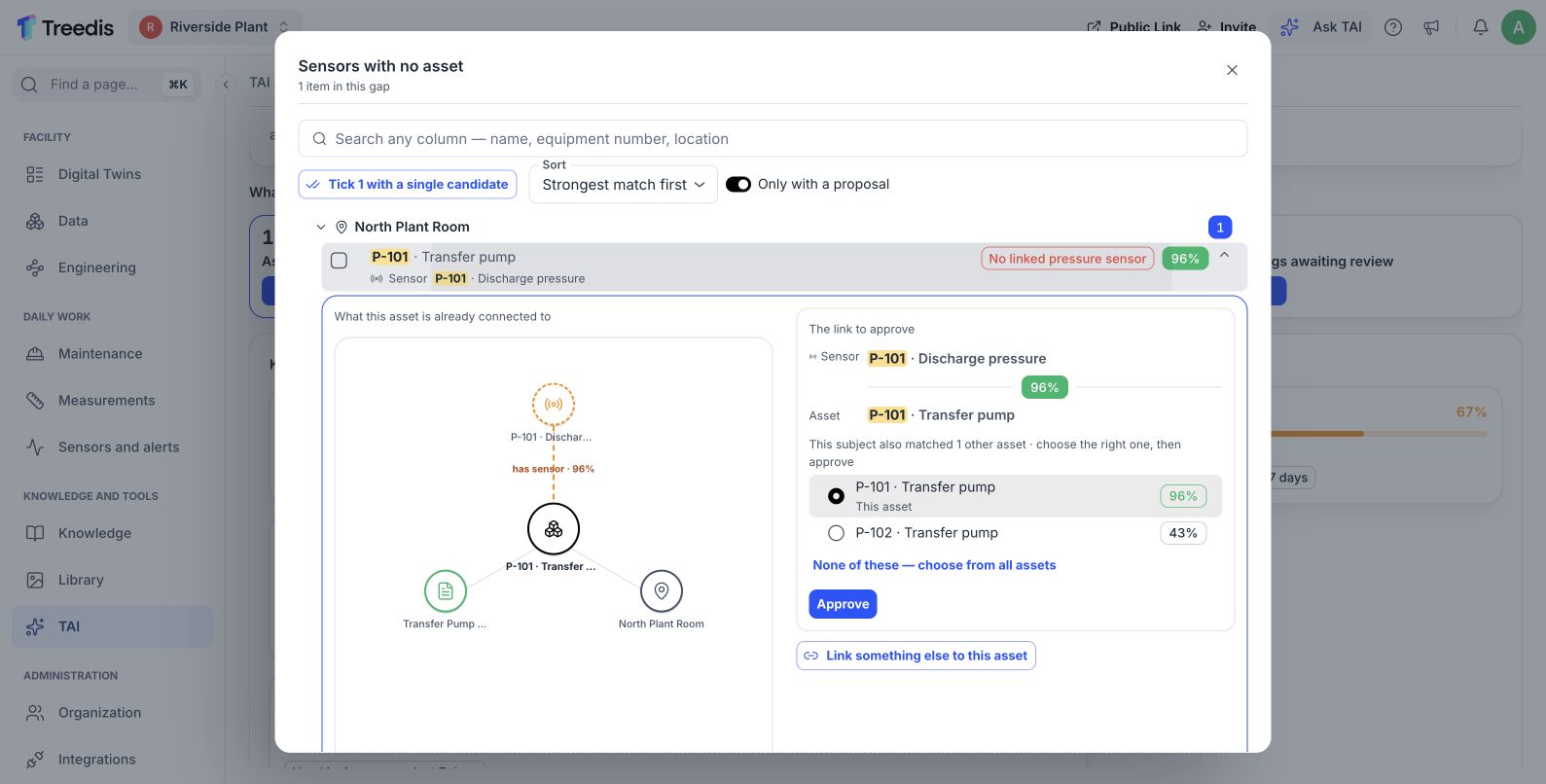
Compare the evidence and alternatives. Open the image to read it at full size.
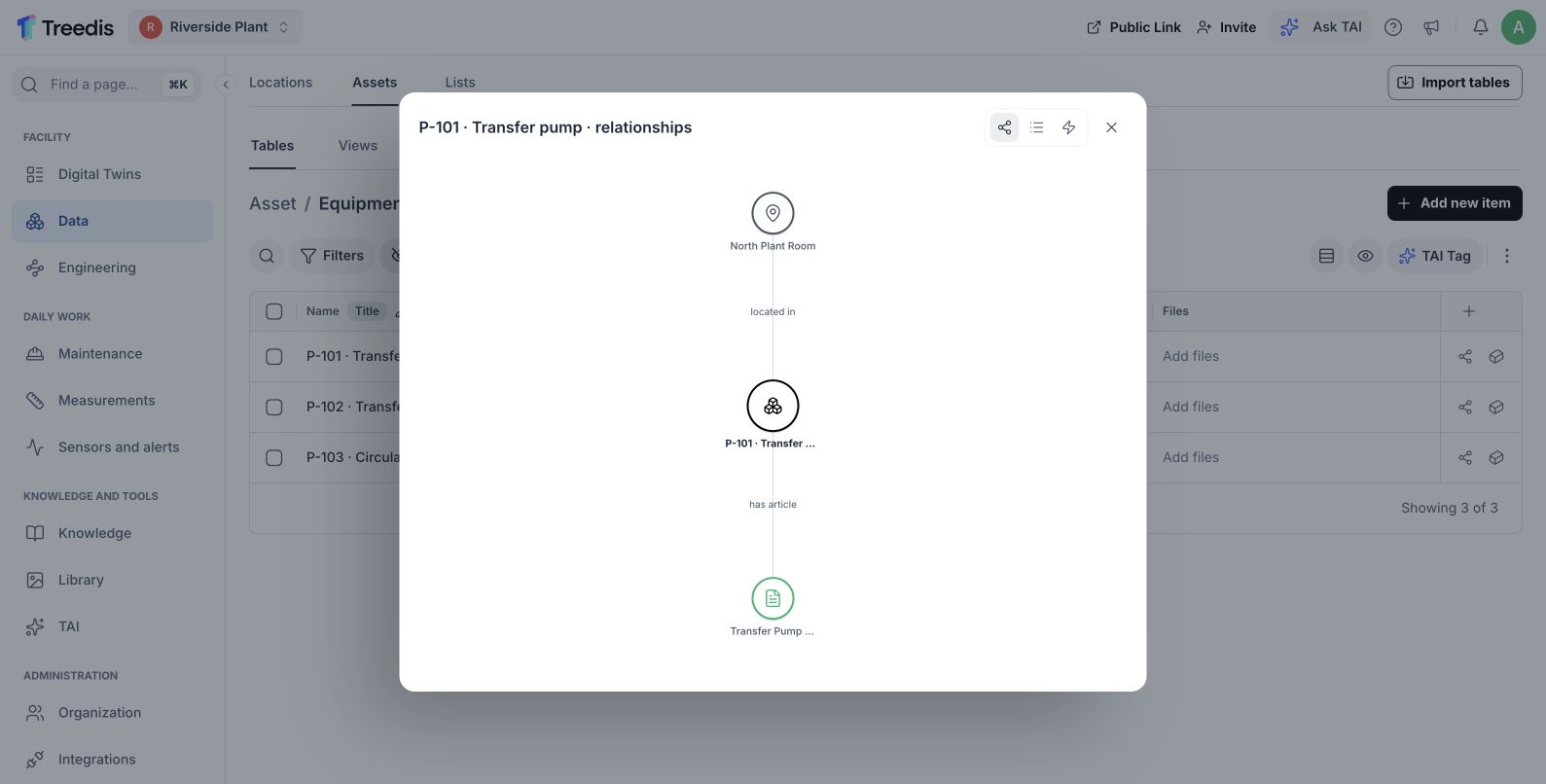
Open the connected equipment. Open the image to read it at full size.
Watch the process explainer
This narrated animation explains the process. It is an overview, rather than a recording of the product interface.
Use the chapter sections in the progress bar to revisit a step. English subtitles are on by default; choose Hebrew in the captions settings.
A simple example
A sensor named “P-101 discharge pressure” has a clearer connection to equipment P-101 than a sensor named only “101”. A shared equipment code helps the reviewer assess the suggested pair.
The user flow
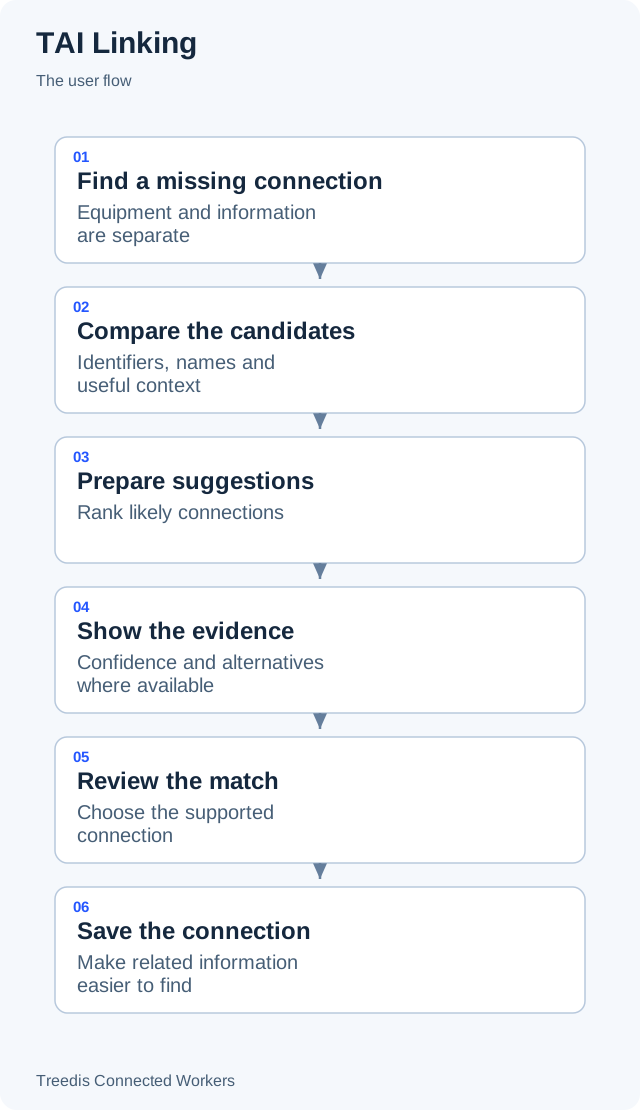
- Find a missing connection. Equipment and information are separate.
- Compare the candidates. Identifiers, names and useful context.
- Prepare suggestions. Rank likely connections.
- Show the evidence. Confidence and alternatives where available.
- Review the match. Choose the supported connection.
- Save the connection. Make related information easier to find.
How it works
The diagram below shows the general information flow. Open it to view the labels at full size.
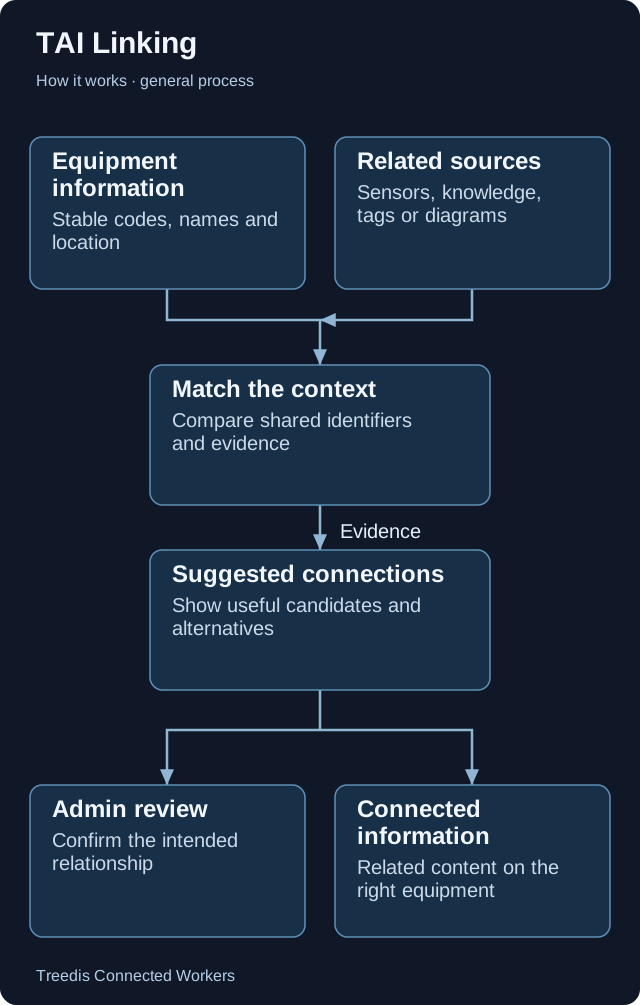
- Equipment information. Stable codes, names and location.
- Related sources. Sensors, knowledge, tags or diagrams.
- Match the context. Compare shared identifiers and evidence.
- Suggested connections. Show useful candidates and alternatives.
- Admin review. Confirm the intended relationship.
- Connected information. Related content on the right equipment.
Technical overview
Linking uses several matching paths. Shared identifiers, names and location context support deterministic scoring. Some paths add model-based matching when names alone are insufficient. The review shows suggested connections and alternatives where available.
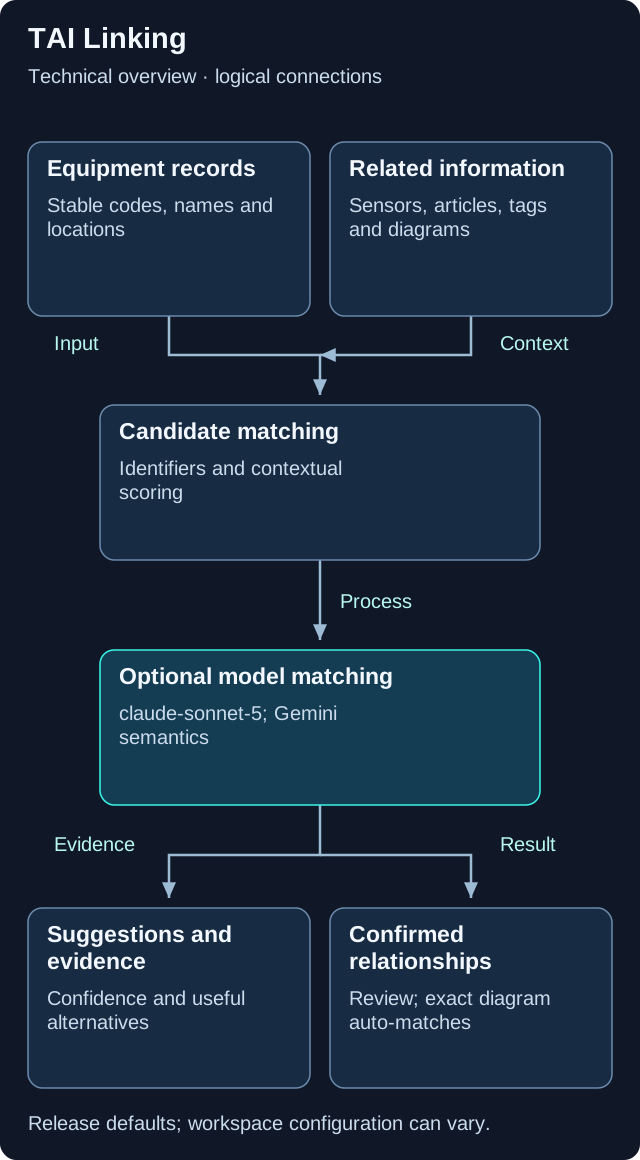
This is a logical overview. Open the diagram for full-size labels. Tool calls and searches can repeat during a request.
Models and components
| Role | Release default or method | What it does |
|---|---|---|
| 3D tag matching | claude-sonnet-5 |
Matches existing tags with equipment records. |
| Diagram visual extraction | gemini-3.1-pro-preview |
Default vision model for diagram detection. |
| Optional diagram semantics | gemini-embedding-001 + gemini-3.8-flash |
Candidate retrieval followed by reranking. |
| Sensors and article suggestions | Deterministic scoring |
These paths do not require an LLM for every match. |
Different sources, different methods
Sensor and article suggestions refresh in a nightly matching process. The 3D tag matcher is a separate, administrator-started path.
Diagrams use exact codes first
Certain exact diagram-to-asset matches can be approved automatically. Optional semantic matching retrieves candidates and reranks them.
Relationships improve context
A saved link helps the application and TAI retrieve the records that belong to the intended equipment. Consistent identifiers improve both automatic matching and human review.
Version note. This overview is based on CW release/1.0.1. Model names describe the defaults in that release. Workspace provider choices, deployment settings, feature availability and later releases can change the actual model or path.
What your team controls
| TAI helps with | Your team controls |
|---|---|
| TAI prepares likely connections and available supporting evidence. | Your team resolves ambiguity and confirms suggestions that require review. |
Data and asset tips
- Use the same equipment code. Keep the stable code consistent across asset records, sensor names, diagrams and item-specific document titles.
- Avoid bare numbers. “P-101 transfer pump” gives more context than “101”. Reused numbers can refer to several items.
- Keep locations consistent. Use a clear site, building and room hierarchy, with correct equipment and sensor assignments.
- Use specific titles. Name the actual item when a document is about one piece of equipment. Generic titles give less evidence.
- Review alternatives. Resolve duplicate identifiers and similar names. Approve the connection supported by the source information.
FAQ
Are all suggestions created by the same method?
No. Different source types use different matching methods. Clear identifiers and useful context help across the available paths.
Are all diagram links waiting for approval?
No. Certain exact diagram matches can be automatic. Other candidates need review.
Related guides
TAI overview Choose the right TAI feature and understand how the parts connect. Knowledge and search Prepare useful sources and understand search readiness.Need help?
Ask your workspace administrator about enabled features and source access. For help with TAI, contact support@treedis.com.