TAI Chat
TAI Chat helps workers find information and choose a useful next step. Ask in your own words, use supported voice input, or attach an image. TAI can use the current conversation and available workspace context to look up relevant information.
Availability and review. Available sources, voice options and actions depend on workspace settings and your access. Check important answers against the linked source.
Watch the product walkthrough
From a question to a reviewed action. Follow the complete process in this guided product demonstration, with clear narration, readable screens and a result at the end.
Use the chapter sections in the progress bar to revisit a step. Choose English or Hebrew in the captions settings, and use fullscreen to inspect interface details. The walkthrough images below also open at full size.
Walkthrough images
Key steps from the product demonstration.
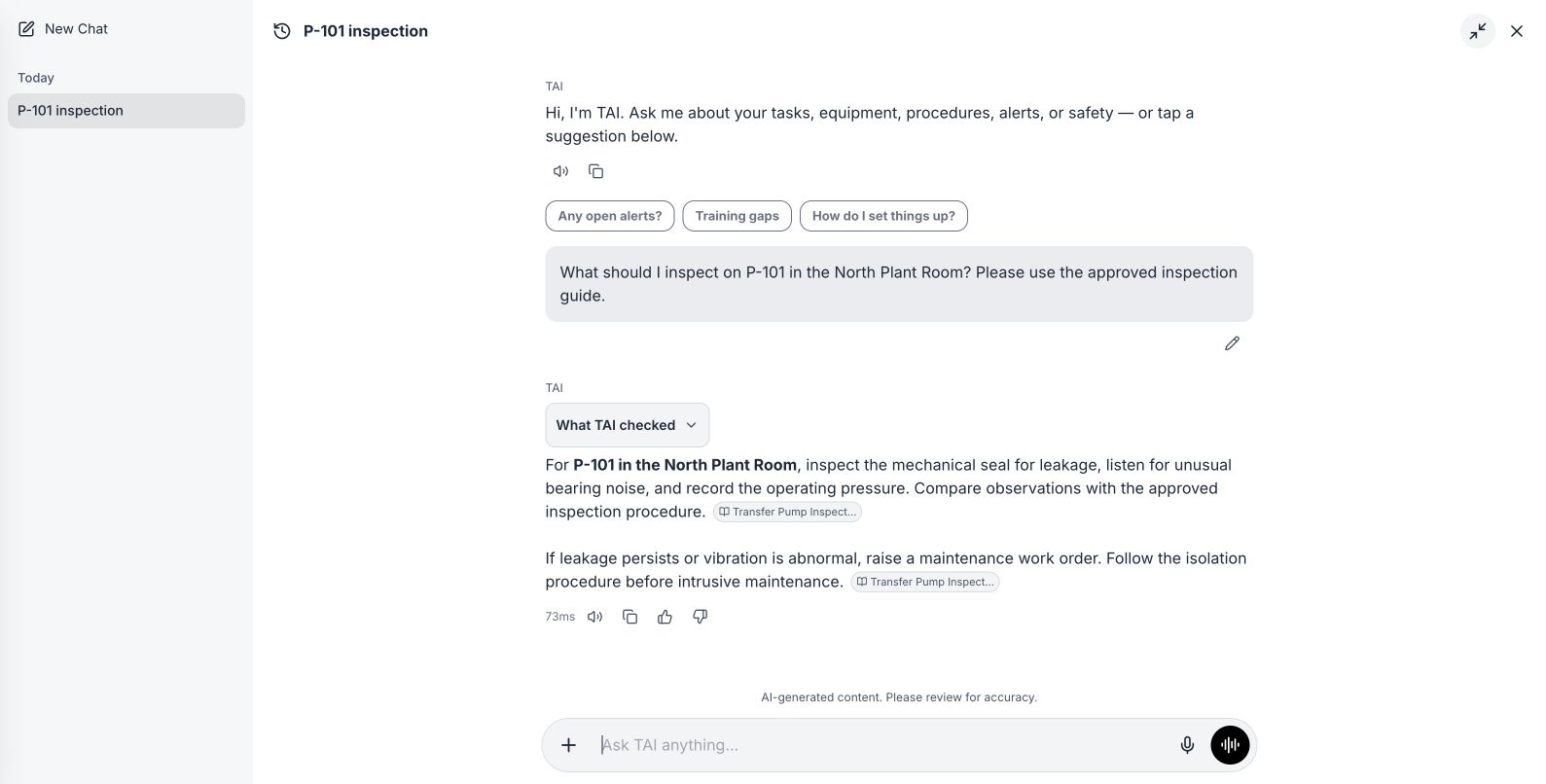
Read the answer and sources. Open the image to read it at full size.
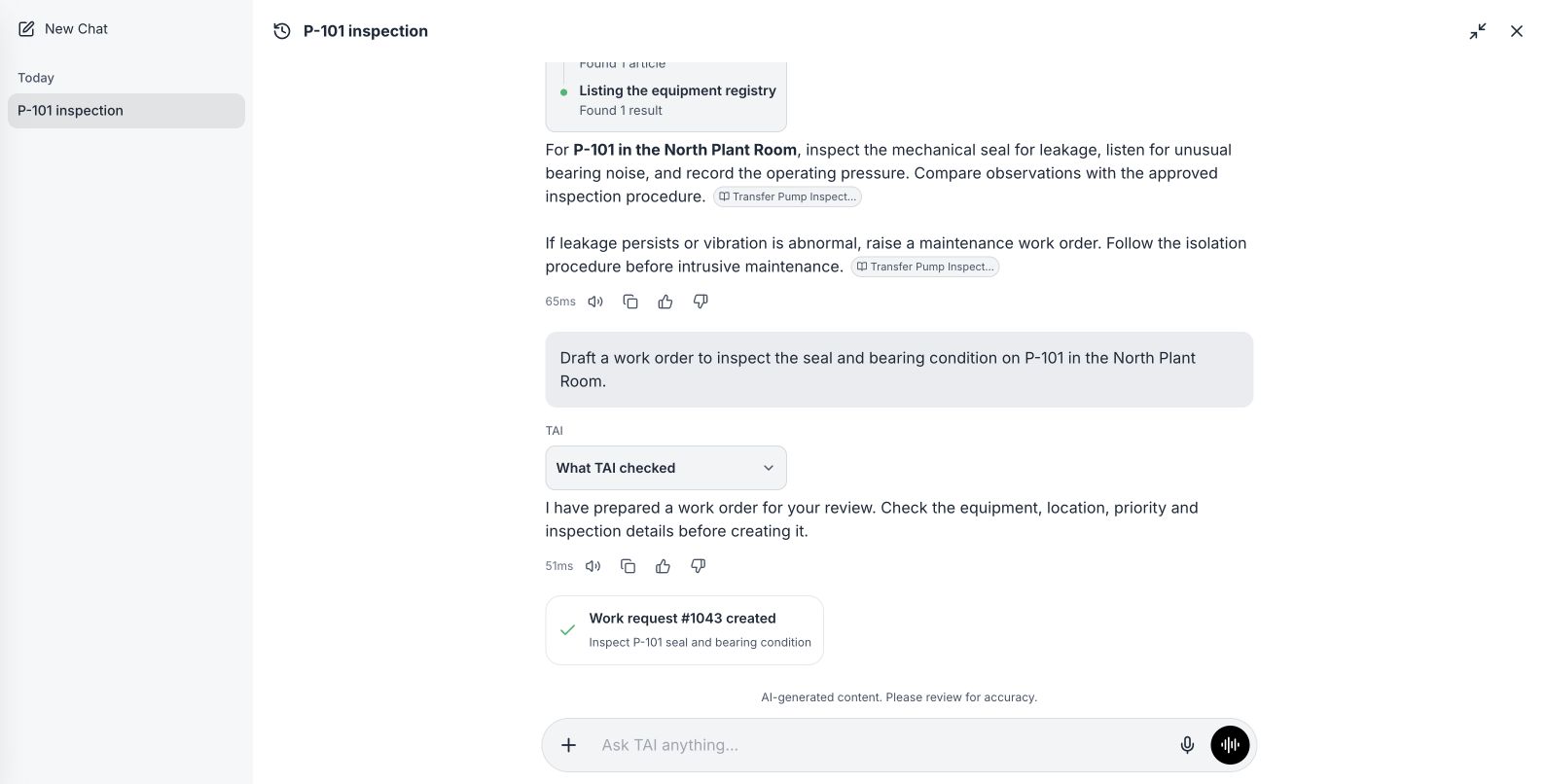
Check the saved work-order receipt. Open the image to read it at full size.
Watch the process explainer
This narrated animation explains the process. It is an overview, rather than a recording of the product interface.
Use the chapter sections in the progress bar to revisit a step. English subtitles are on by default; choose Hebrew in the captions settings.
A simple example
Ask, “What is the approved restart procedure for transfer pump P-101?” Add or select the intended equipment or location when the name could be ambiguous.
The user flow
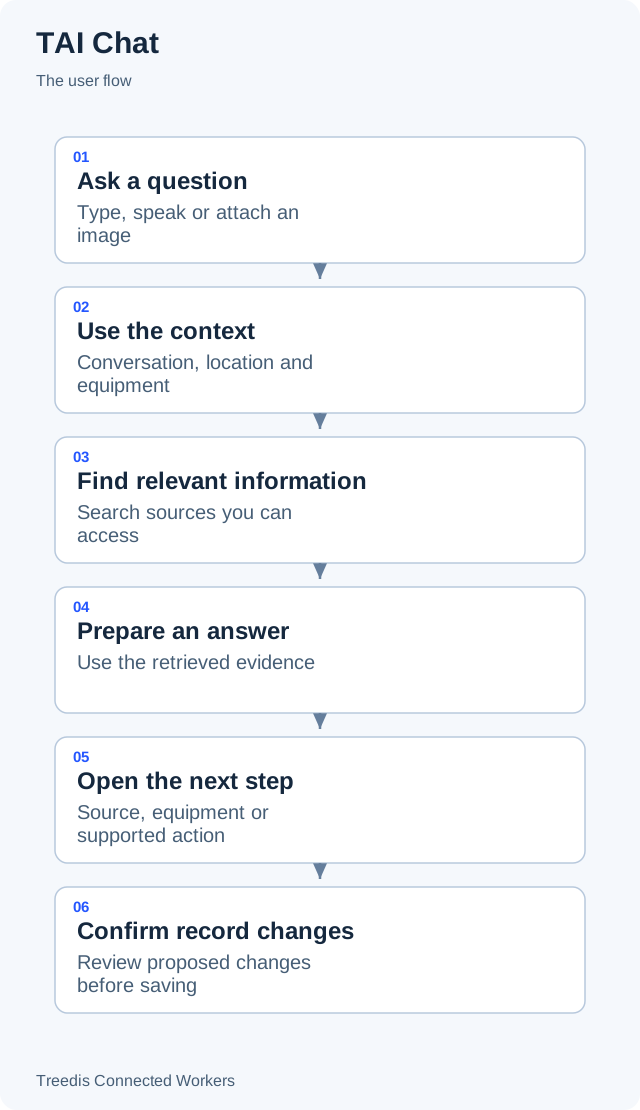
- Ask a question. Type, speak or attach an image.
- Use the context. Conversation, location and equipment.
- Find relevant information. Search sources you can access.
- Prepare an answer. Use the retrieved evidence.
- Open the next step. Source, equipment or supported action.
- Confirm record changes. Review proposed changes before saving.
How it works
The diagram below shows the general information flow. Open it to view the labels at full size.
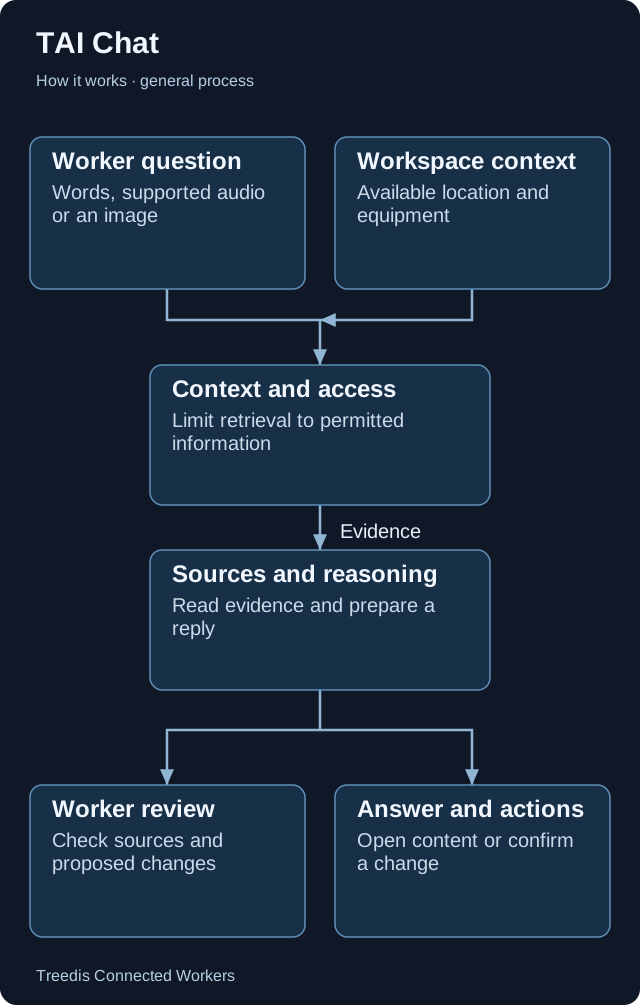
- Worker question. Words, supported audio or an image.
- Workspace context. Available location and equipment.
- Context and access. Limit retrieval to permitted information.
- Sources and reasoning. Read evidence and prepare a reply.
- Worker review. Check sources and proposed changes.
- Answer and actions. Open content or confirm a change.
Technical overview
A conversation service sends the question and allowed context to TAI. The assistant can request scoped search and record tools, then use their results in its reply. Supported writes return through the application’s confirmation and permission checks.
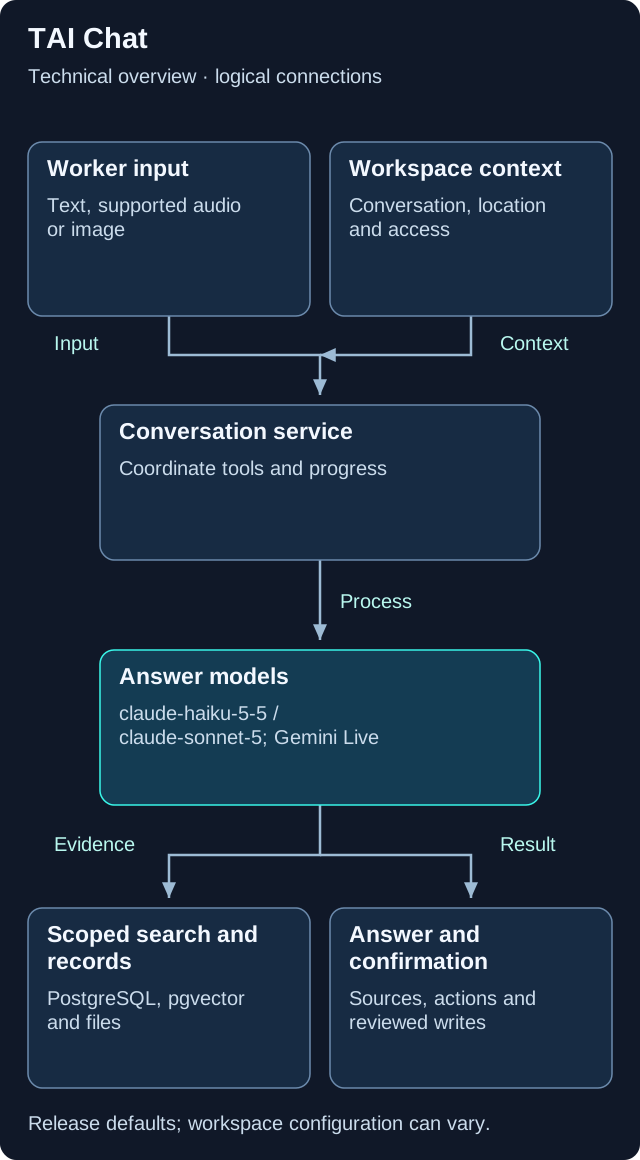
This is a logical overview. Open the diagram for full-size labels. Tool calls and searches can repeat during a request.
Models and components
| Role | Release default or method | What it does |
|---|---|---|
| Default text conversation | claude-haiku-5-5 |
Fast model for the standard text route. |
| Text escalation | claude-sonnet-5 |
Stronger reasoning when the route escalates. |
| Voice-only conversation | gemini-3.8-live / gemini-3.8-live-extended-thinking |
Separate voice route; available options depend on setup. |
| Search embeddings | voyage-3 |
Represents the question for meaning-based retrieval. |
Search is a tool
TAI chooses an available retrieval tool for the task. A question vector can find related passages; exact asset and record tools supply structured context. The model receives the retrieved text, not just the vectors.
Providers can vary
Workspace configuration can select Anthropic, Amazon Bedrock, Azure or Gemma routes. The release’s Gemma default is gemma-4-31B-it. A model name here describes a code default, not a guarantee for every conversation.
Actions remain in the application
The assistant can propose a supported change. The application applies authorization and the relevant confirmation step before it saves the change.
Version note. This overview is based on CW release/1.0.1. Model names describe the defaults in that release. Workspace provider choices, deployment settings, feature availability and later releases can change the actual model or path.
What your team controls
| TAI helps with | Your team controls |
|---|---|
| TAI retrieves relevant information and offers answers or supported next actions. | You check important sources and confirm proposed record changes. |
Data and asset tips
- Use readable names and exact codes. Keep the name people say alongside the code printed on the equipment. Add common aliases in its description.
- Link information to its subject. Connect the correct manual, procedure and work history to the asset or location it describes.
- Keep instructions searchable. Use readable text and clear headings. Use a clear scan when an original text document is unavailable.
- Keep approved content current. Publish reviewed procedures and keep asset assignments, statuses and document revisions up to date.
- Give the question a clear context. Select or name the intended asset and location. Ask one clear question, then refine it with follow-ups.
FAQ
Can TAI read everything in the workspace?
Available tools and sources depend on configuration and your access. A missing result does not prove the information does not exist.
Will TAI save a work change just because I ask about it?
Supported record changes follow a review and confirmation process. Check the proposed details before confirming.
Related guides
TAI overview Choose the right TAI feature and understand how the parts connect. Knowledge and search Prepare useful sources and understand search readiness.Need help?
Ask your workspace administrator about enabled features and source access. For help with TAI, contact support@treedis.com.