TAI Tag
TAI Tag helps you find visible equipment in a scanned space and place named tags in the digital twin. You describe what to find and can provide an equipment list or reference material. Review the generated tags before relying on them in your workspace.
Availability and review. Recognition depends on scan coverage and reference quality. Similar-looking equipment may need a person to confirm its identity.
Watch the product walkthrough
From equipment list to tags in your space. Follow the complete process in this guided product demonstration, with clear narration, readable screens and a result at the end.
Use the chapter sections in the progress bar to revisit a step. Choose English or Hebrew in the captions settings, and use fullscreen to inspect interface details. The walkthrough images below also open at full size.
Walkthrough images
Key steps from the product demonstration.
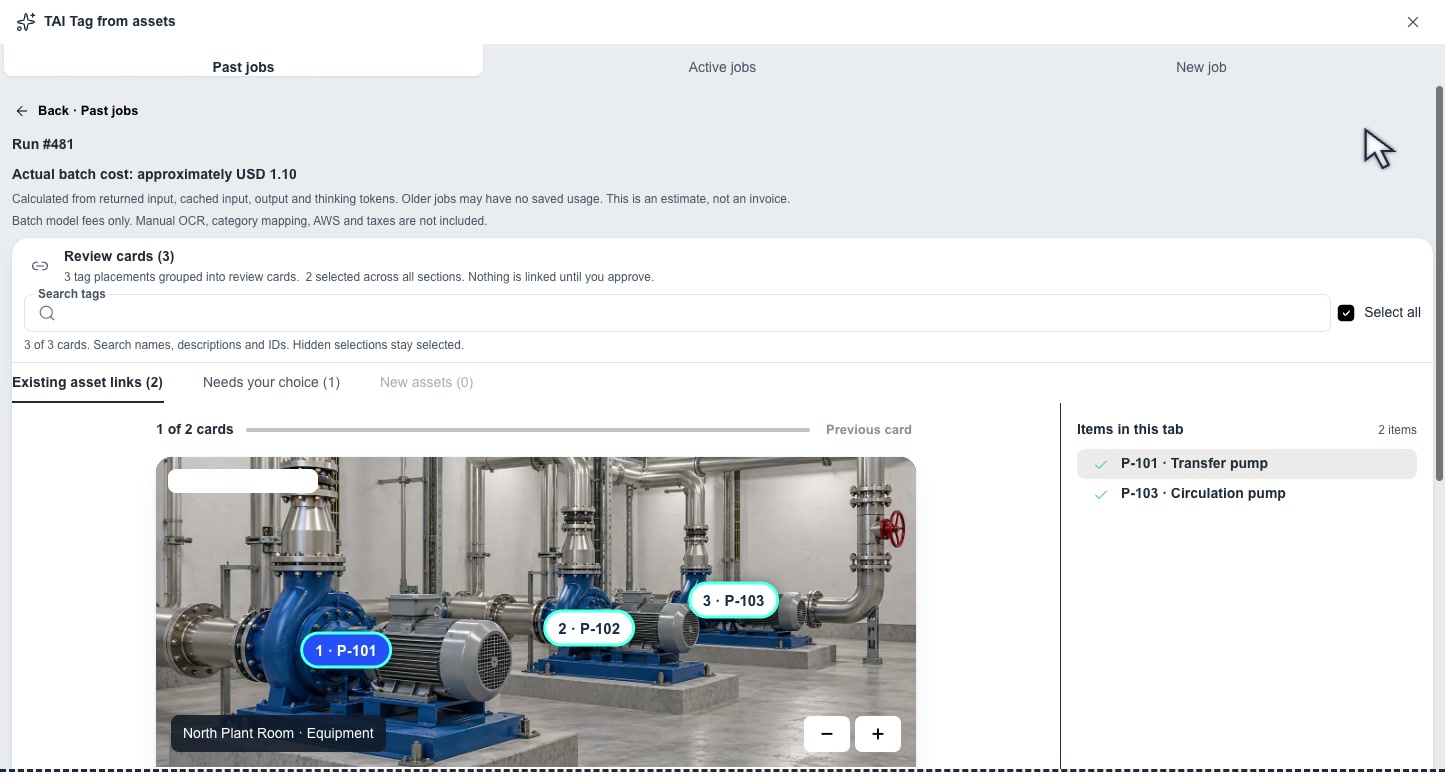
Review the proposed matches. Open the image to read it at full size.
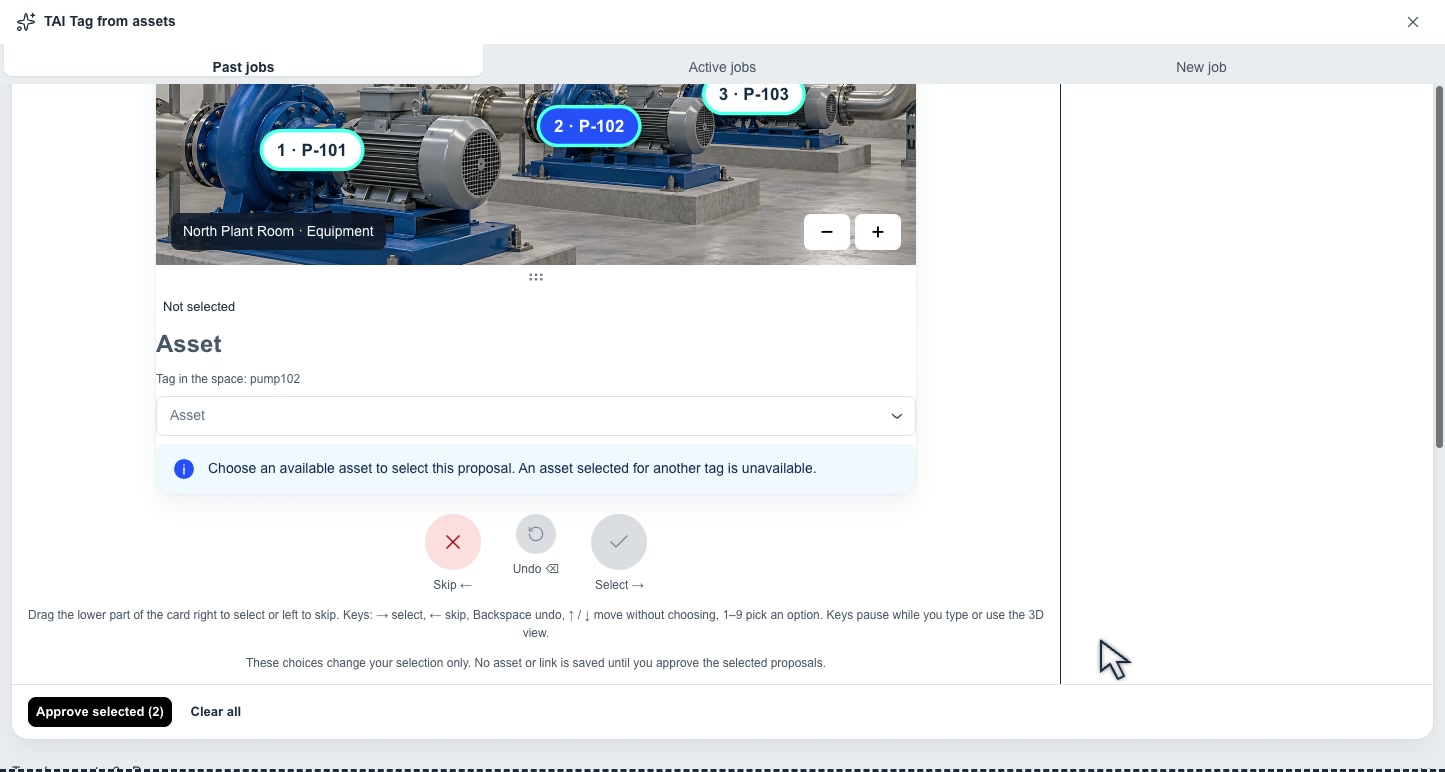
Use the equipment image and positioned tags while choosing the intended asset. Open the image to read it at full size.
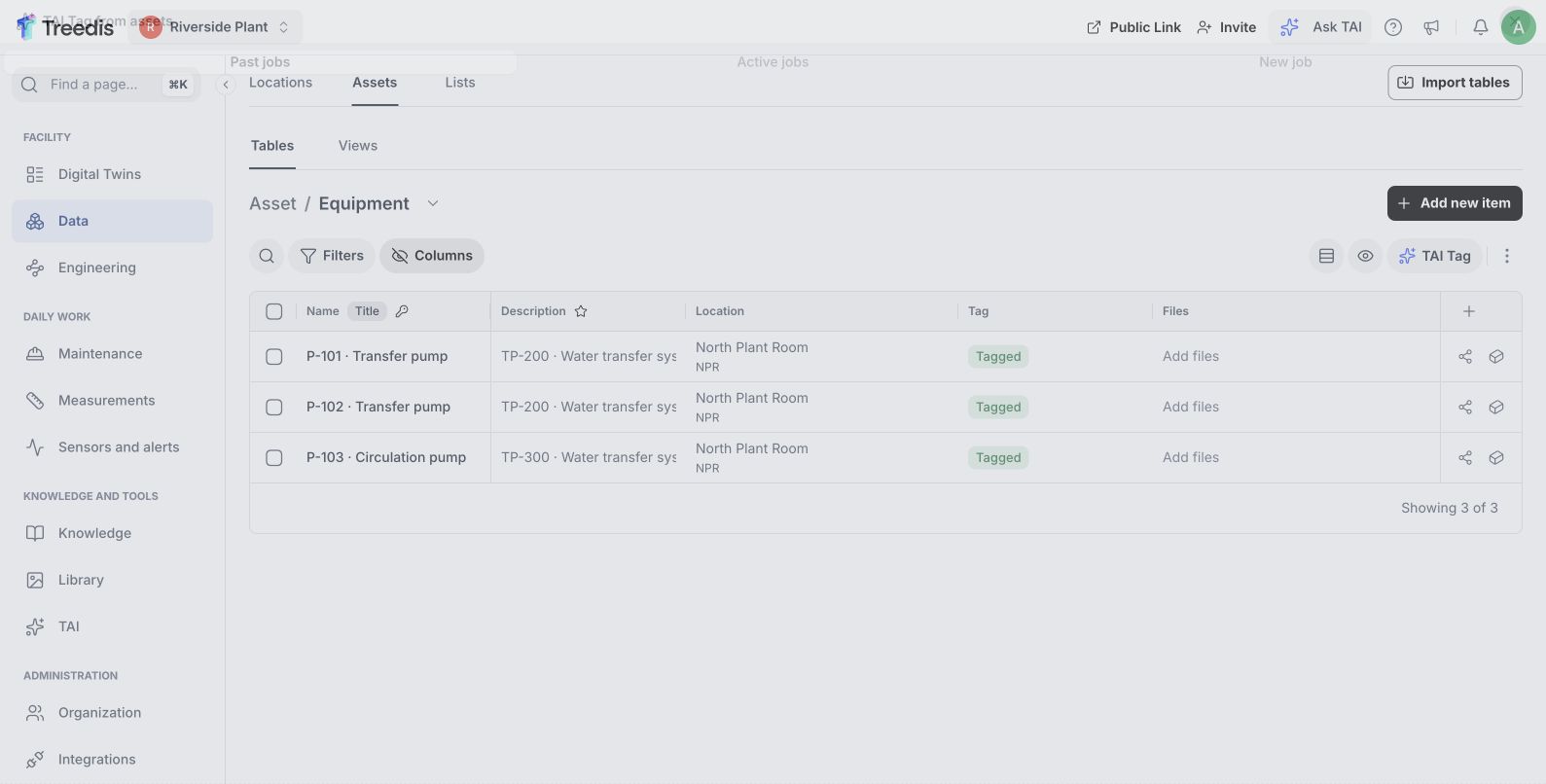
Check the saved equipment links. Open the image to read it at full size.
Watch the process explainer
This narrated animation explains the process. It is an overview, rather than a recording of the product interface.
Use the chapter sections in the progress bar to revisit a step. English subtitles are on by default; choose Hebrew in the captions settings.
A simple example
Your team wants to locate transfer pump P-101 in a scanned plant room. Its own nameplate and a reference photo help distinguish it from the pump beside it.
The user flow
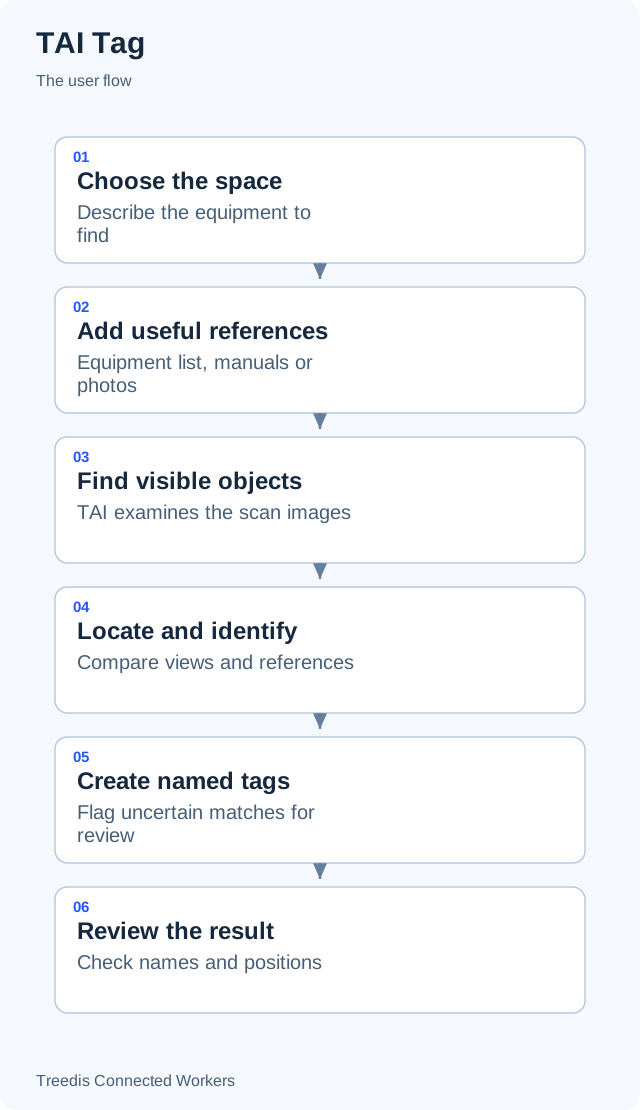
- Choose the space. Describe the equipment to find.
- Add useful references. Equipment list, manuals or photos.
- Find visible objects. TAI examines the scan images.
- Locate and identify. Compare views and references.
- Create named tags. Flag uncertain matches for review.
- Review the result. Check names and positions.
How it works
The diagram below shows the general information flow. Open it to view the labels at full size.
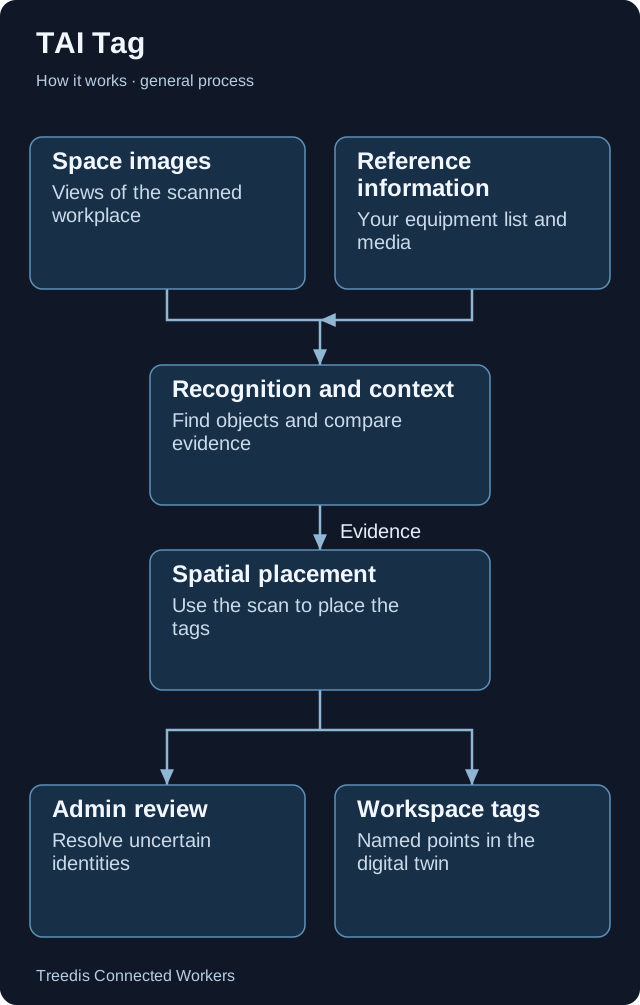
- Space images. Views of the scanned workplace.
- Reference information. Your equipment list and media.
- Recognition and context. Find objects and compare evidence.
- Spatial placement. Use the scan to place the tags.
- Admin review. Resolve uncertain identities.
- Workspace tags. Named points in the digital twin.
Technical overview
TAI Tag combines visual recognition with the spatial information in a scan. The recognition model identifies visible candidates; scan geometry helps place them. Equipment identity still needs a review when the evidence is unclear.
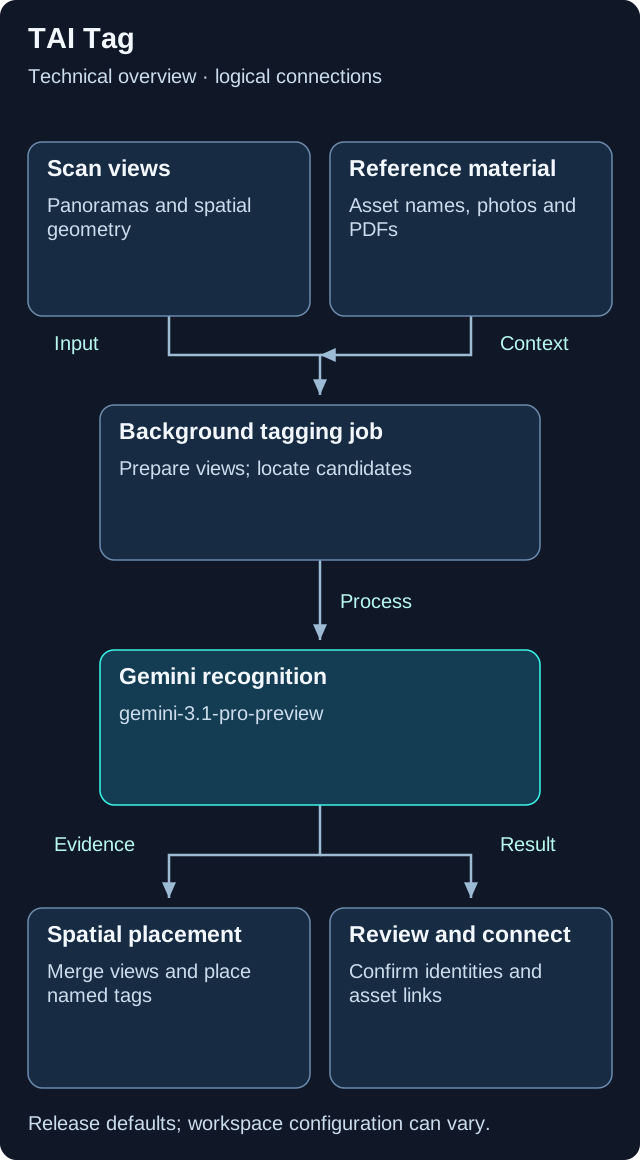
This is a logical overview. Open the diagram for full-size labels. Tool calls and searches can repeat during a request.
Models and components
| Role | Release default or method | What it does |
|---|---|---|
| Recognition and identification | gemini-3.1-pro-preview |
Examines scan views and supplied references. |
| Separate 3D tag-to-asset matching | claude-sonnet-5 |
Suggests connections between existing tags and equipment records. |
Input preparation
The service prepares scan views and available references for a background job. Existing asset names guide inventory-based recognition.
Recognition and placement
Visual candidates are compared across views and references, then positioned using the scan. A detected object is not automatically a confirmed equipment identity.
Review and linking
Tag creation and equipment-record linking are separate stages. Review uncertain results and use the linking review to confirm the intended asset.
Version note. This overview is based on CW release/1.0.1. Model names describe the defaults in that release. Workspace provider choices, deployment settings, feature availability and later releases can change the actual model or path.
What your team controls
| TAI helps with | Your team controls |
|---|---|
| TAI proposes object identities and creates tags from the available evidence. | Your team checks uncertain matches, corrects positions and confirms equipment connections. |
Data and asset tips
- Use stable equipment IDs. Keep one unique code per physical item. Store its readable name, manufacturer, model and location in clear fields.
- Show the item’s own nameplate. Attach clear reference photos of the actual item. Avoid using one photo to represent several similar units.
- Capture several clear views. Objects that are hidden, blurred or visible from only one poor angle are harder to locate and identify.
- Keep references relevant. Use the equipment list for the selected area and the correct manual revision. Describe look-alikes that should be excluded.
- Review before linking. Confirm the name and position, then check that the tag connects to the intended equipment record.
FAQ
Does every object become a confirmed asset?
No. A detected object and a confirmed equipment identity are different things. Unclear or similar-looking items need review.
Does a reference photo guarantee a match?
No. A clear reference helps, but the scan must still show enough evidence to identify the item.
Related guides
TAI overview Choose the right TAI feature and understand how the parts connect. Knowledge and search Prepare useful sources and understand search readiness.Need help?
Ask your workspace administrator about enabled features and source access. For help with TAI, contact support@treedis.com.