Navigation Tool — FAQ
Quick answers to questions that come up often when setting up navigation. For the full feature walkthrough, see Navigation Tool.
Can I use the path editor for tags only, without showing the full Navigation Menu?
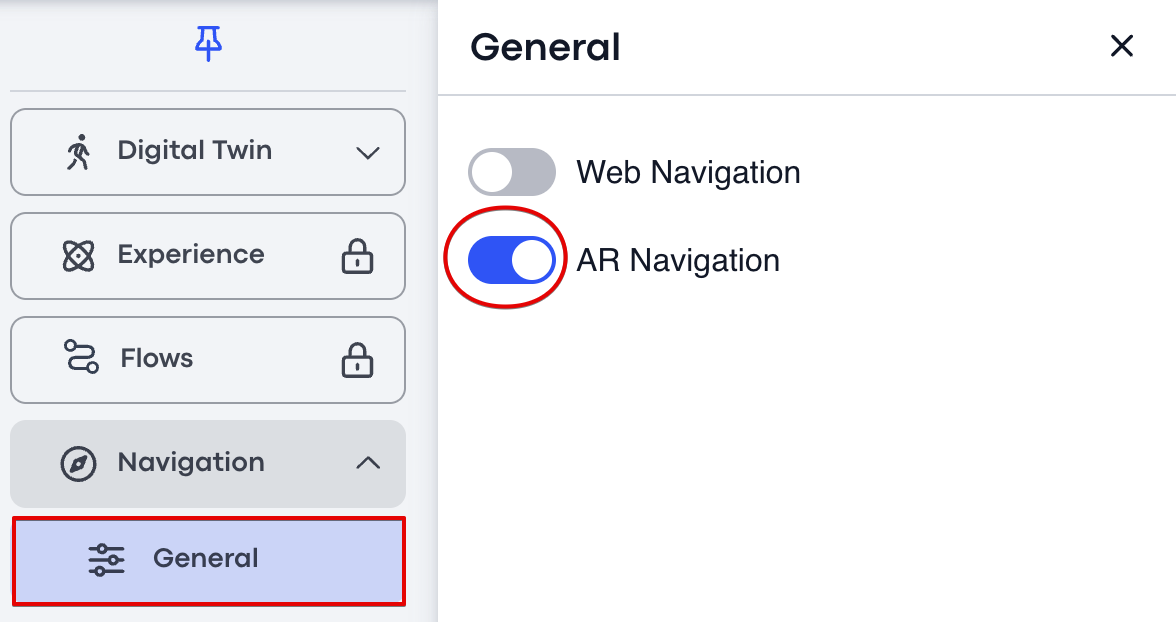
Yes. Enable the Navigation add-on but turn only the AR toggle on. You get the Path Editor and tag-based routing without the full Navigation Menu appearing in the tour.
Can I show all destinations as a single dropdown without categories?
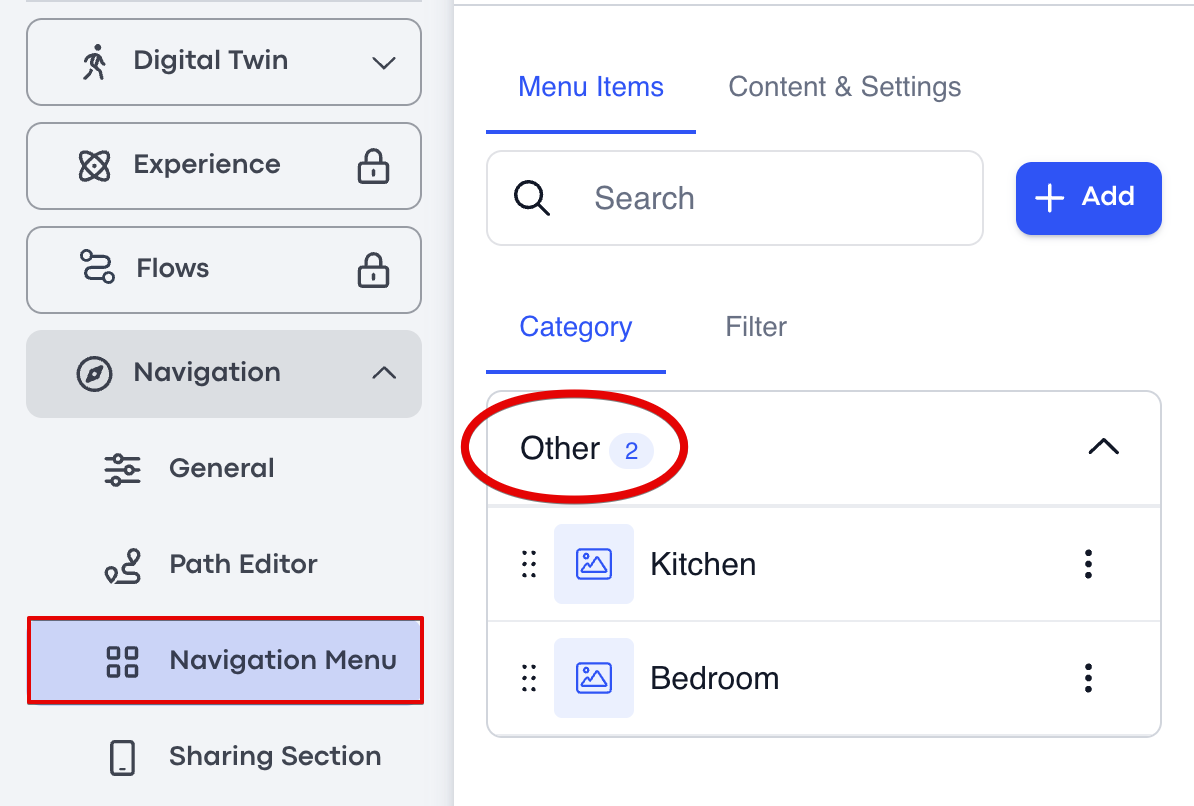
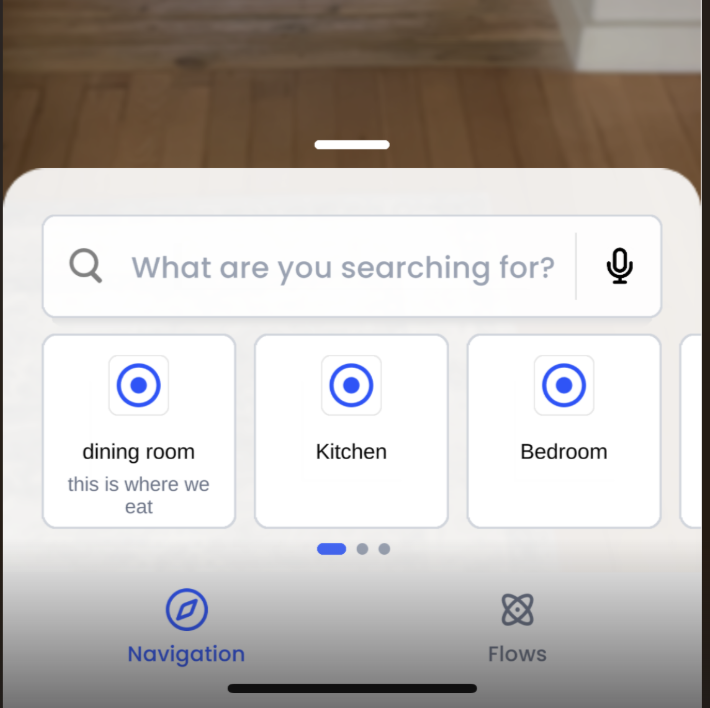
Yes. Don't create any custom categories — leave every destination in the default Other category. The menu then renders as a flat searchable list, with no category headings.
Every WEB navigation path starts from a default sweep with a generic name. Can I rename it?
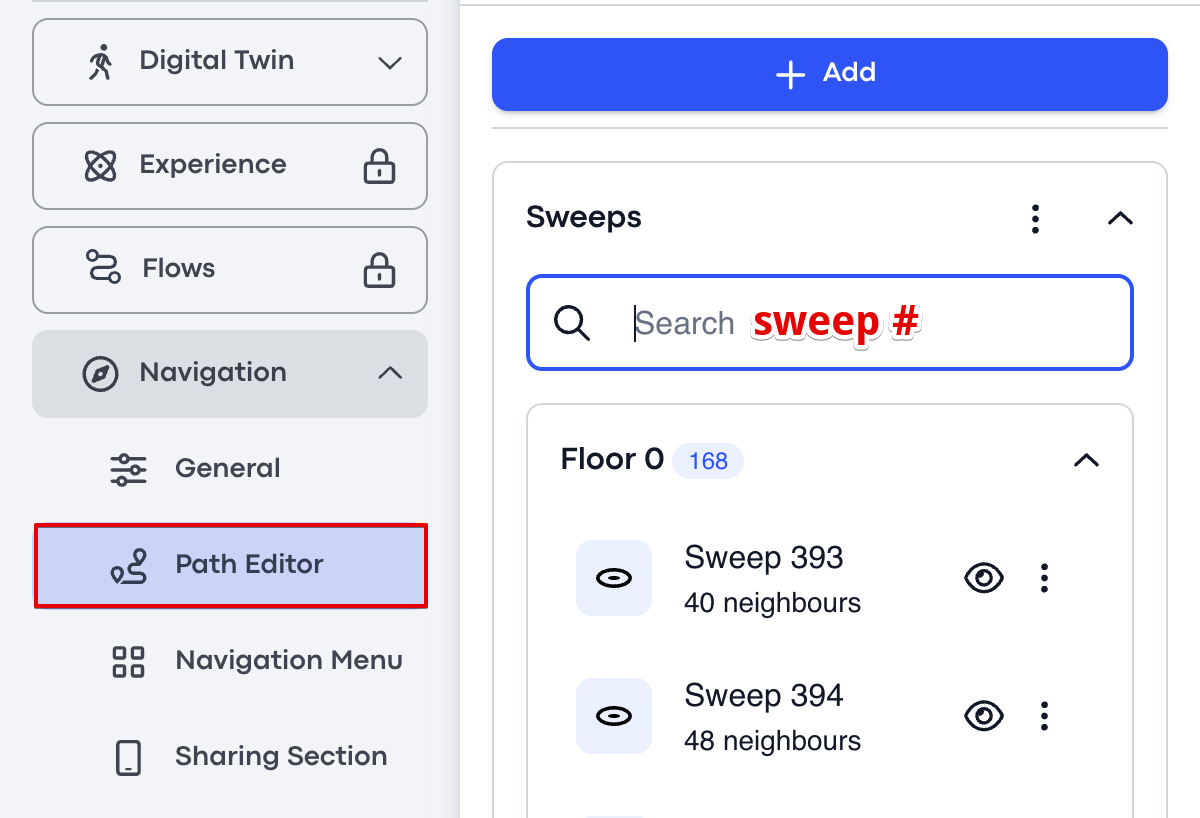
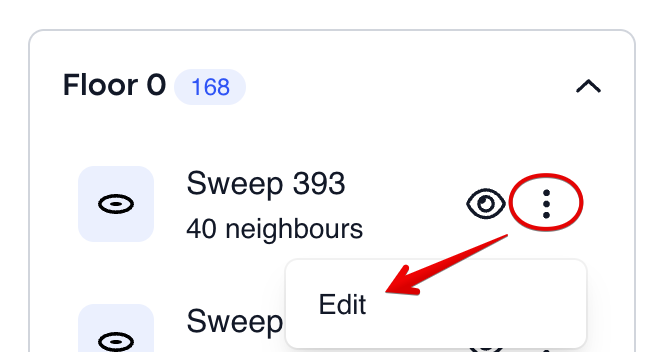
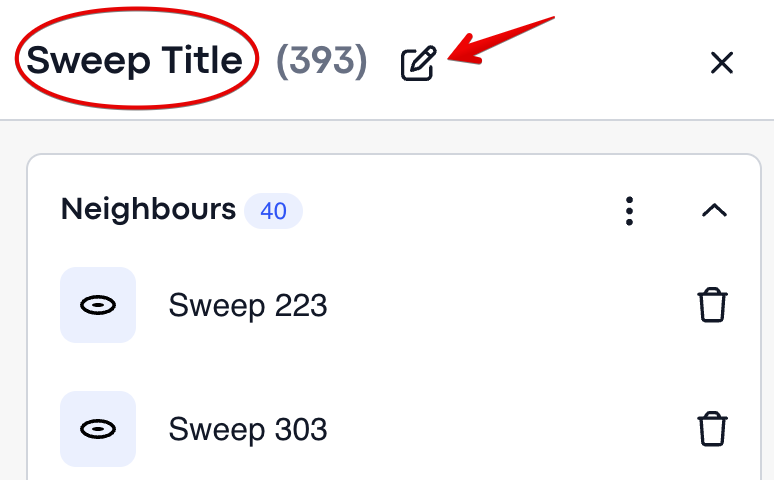
Yes. Go to Navigation Tool → Path Editor → Sweeps, find the sweep in the list, click the three-dot menu, choose Edit, and give it a friendlier name.
Can I change which sweep is the default starting point?
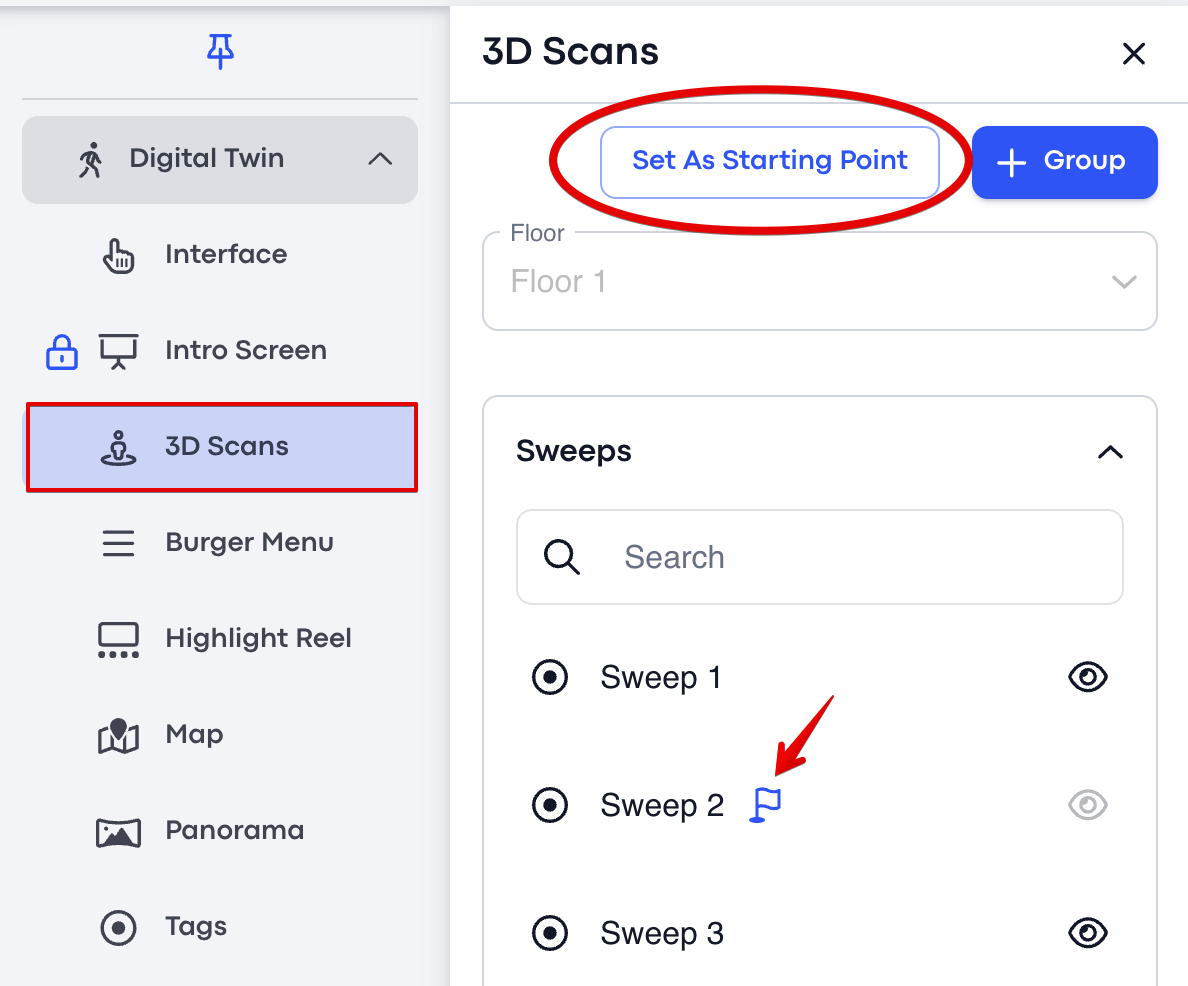
Yes. Open 3D Scans, navigate to the sweep you want to use as the starting point, and click to set it as the default. A flag icon confirms the change.
How do I change the preview photo (thumbnail) for a navigation tag?
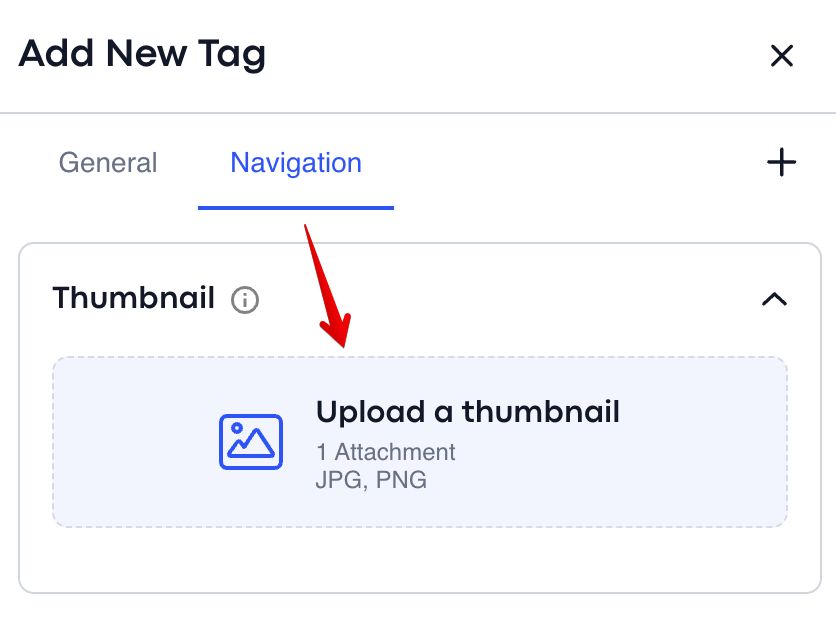
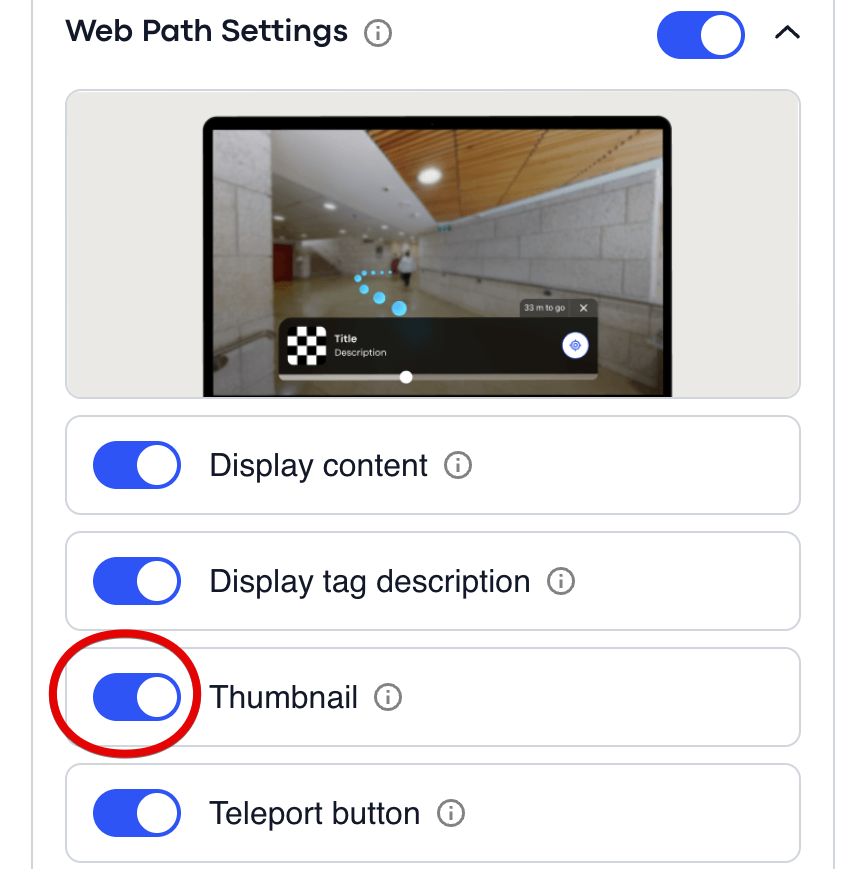
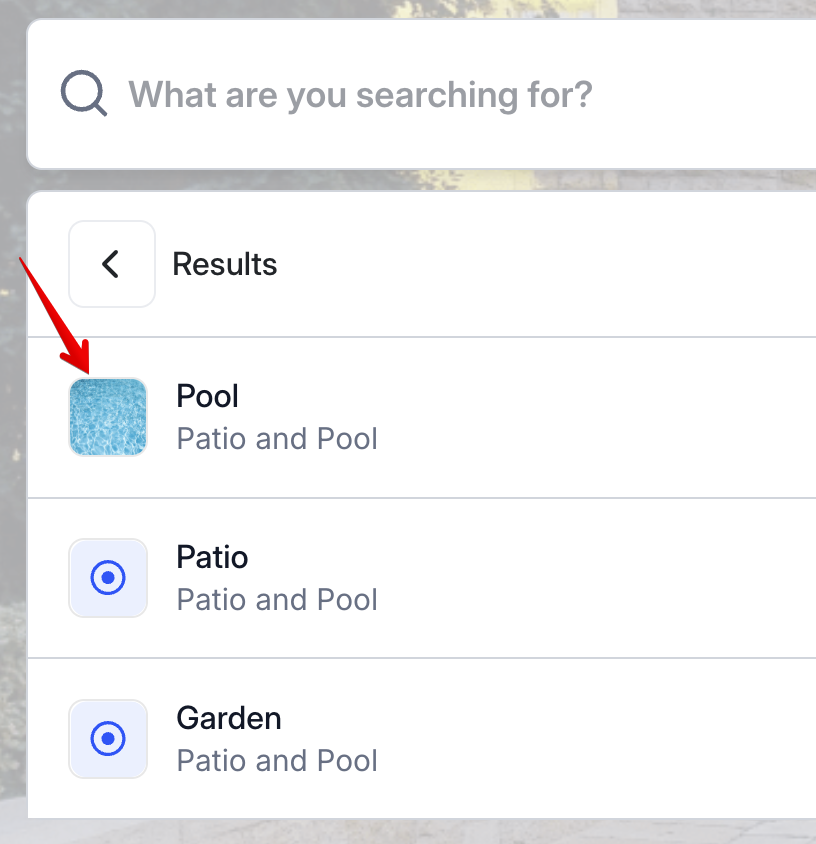
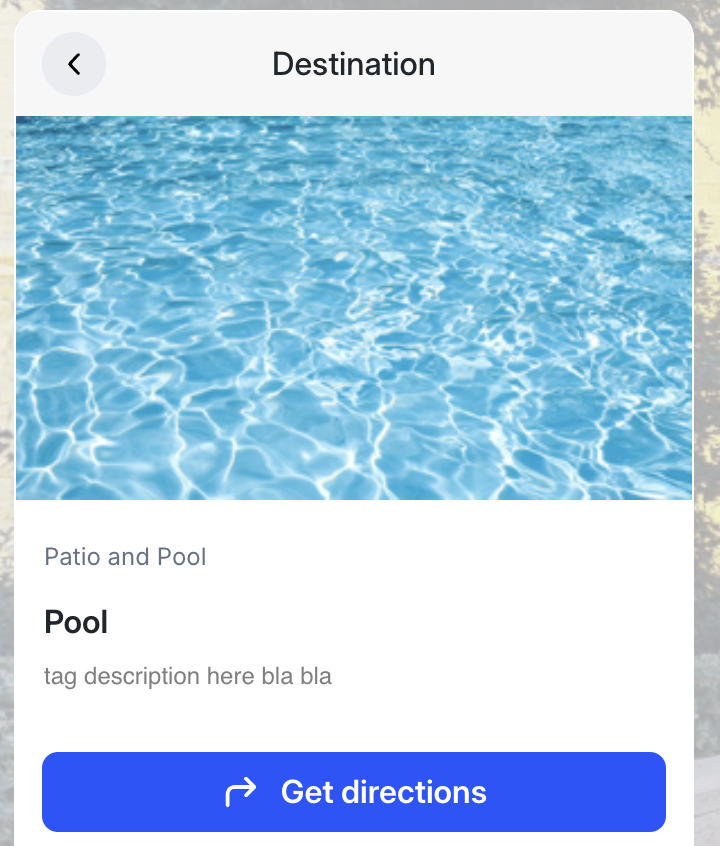
Open the tag's settings, switch to the Navigation tab, upload a thumbnail image, and toggle Thumbnail on. The new image will show in the menu preview.
Do Matterport tags (Mattertags) work in AR navigation, or do I need Treedis tags?
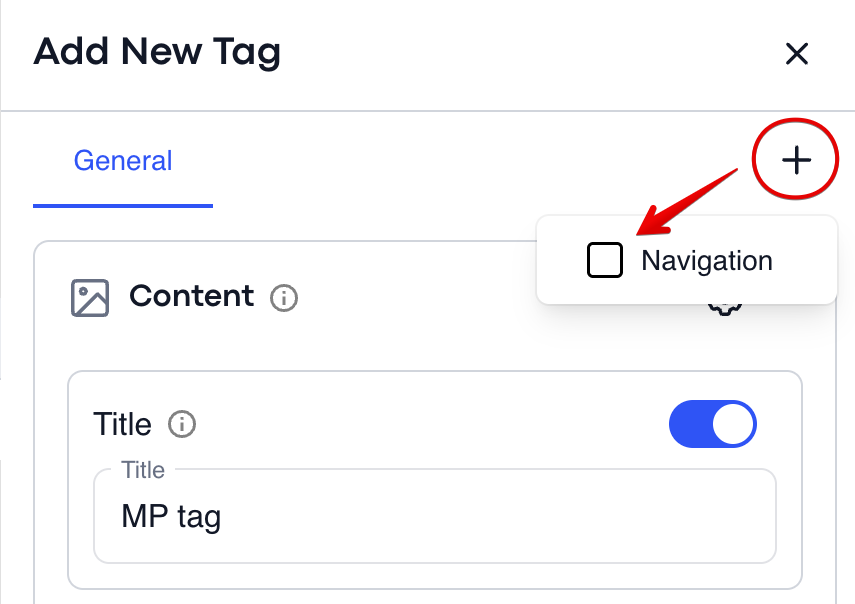
Mattertags work in AR navigation. Open the Mattertag's settings and enable navigation from there. By default they're filed under Other, but you can move them into any custom category just like a native Treedis tag.
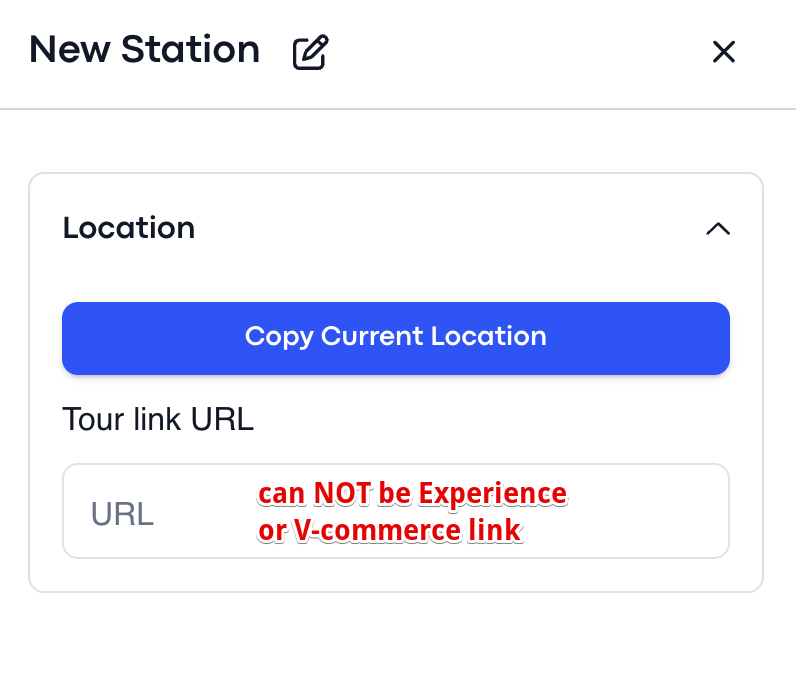
I can't save a deep link in Kiosk mode. What am I doing wrong?
Probably nothing — deep links are only supported in tours that have the AR and Flows add-ons enabled. Experience and V-Commerce tour types don't support deep links, so the field won't save for them.
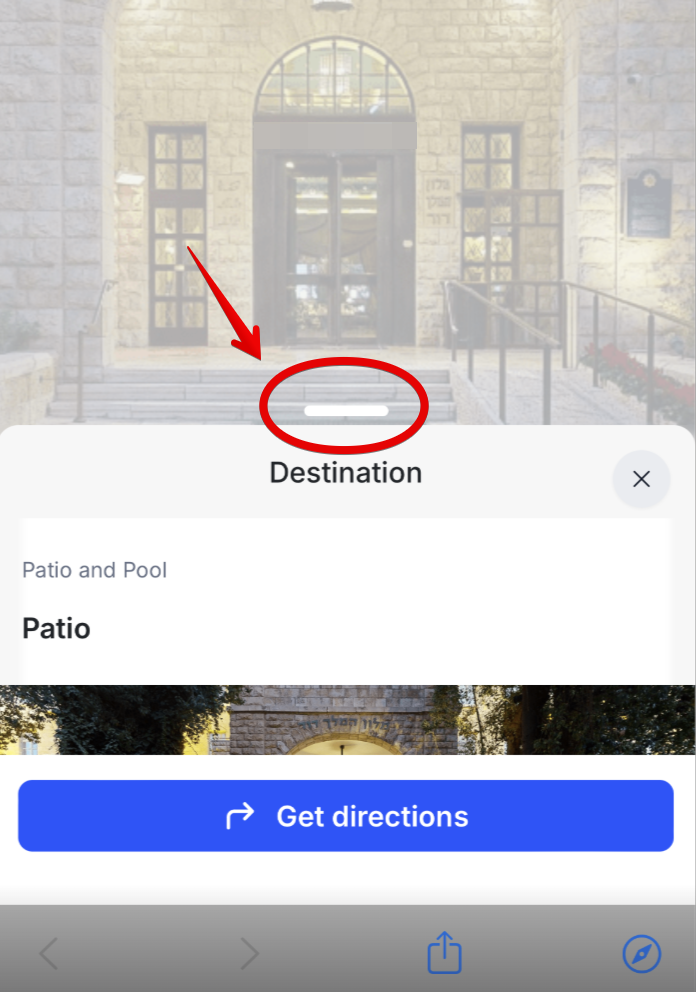
On mobile, the navigation screen doesn't go fullscreen. What should I do?
On mobile the menu is a drawer — pull the slider at the top of the panel upward to expand it. Swiping elsewhere on the screen won't grow the drawer.
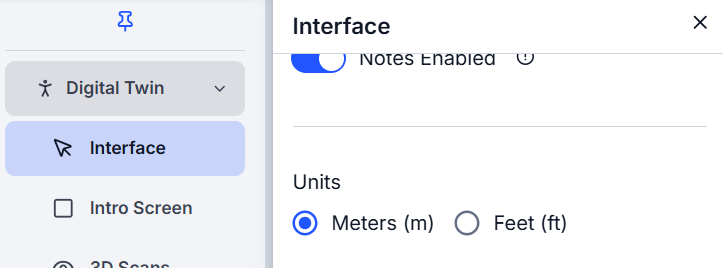
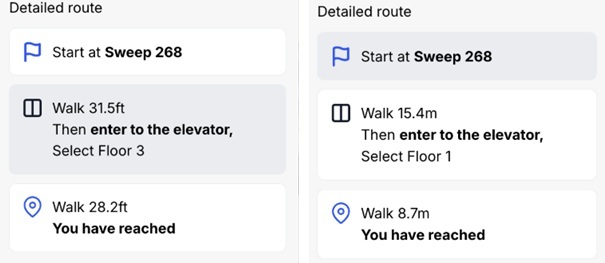
Can I switch between meters and feet?
Yes. In the Navigation Tool's settings, find the Interface section and switch the measurement units. The choice applies to both Web and AR.
Related articles
Navigation Tool Full walkthrough of the Navigation Tool, end to end. Navigation Tags Set up tag-based navigation paths and deep-link shortcuts.Need help?
If your question isn't covered here, email support@treedis.com.