Knowledge
Create, publish and assign approved information and procedures.
Knowledge brings together content such as articles, Flows, quizzes and courses. Content, Assignments and Analytics support creation, distribution and review; available tabs depend on your role.
Workspace access. Pages and actions depend on your role and the modules enabled for your workspace. This guide describes CW release/1.0.1; your administrator can confirm the options available to your team.
Get started
Open Knowledge → Content and choose the intended type. Draft and preview it, then publish through the normal process. Use Assignments to distribute learning and Analytics to review the available completion and journey information.
Watch the walkthrough
Follow the actions in Connected Workers, then use the chapter sections in the progress bar to revisit a step. English subtitles are on by default; choose Hebrew in the captions settings.
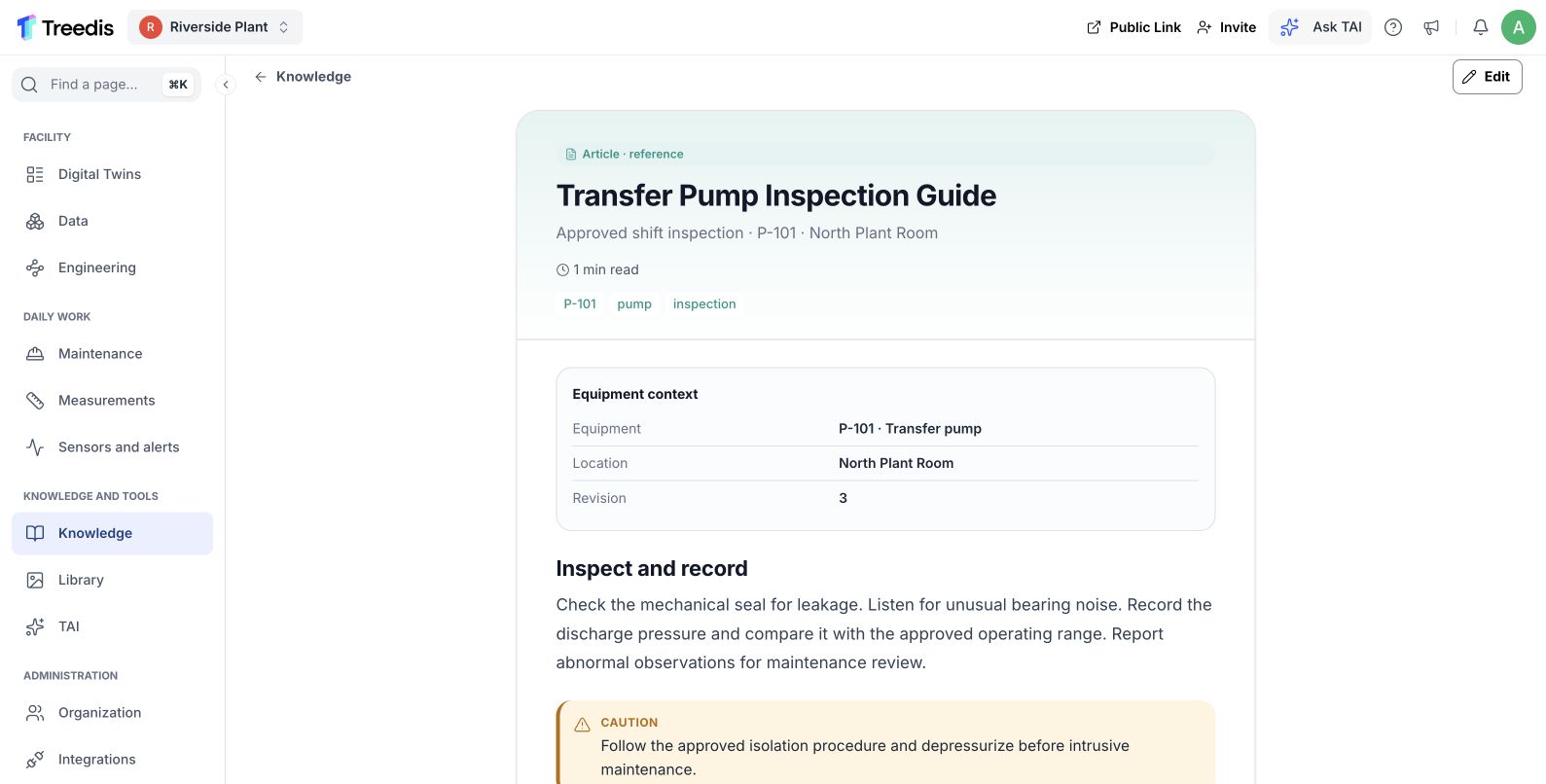
An approved inspection article supplies readable source information. Open the image to view the controls at full size.
The user flow
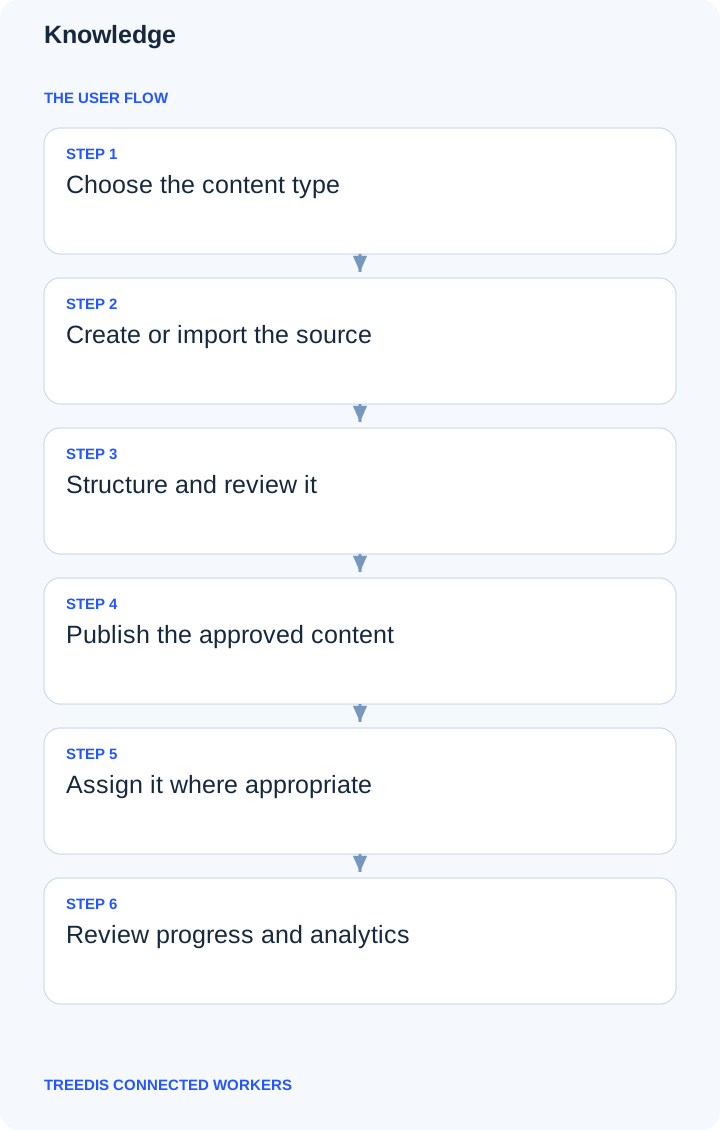
- Choose the content type.
- Create or import the source.
- Structure and review it.
- Publish the approved content.
- Assign it where appropriate.
- Review progress and analytics.
How the information moves
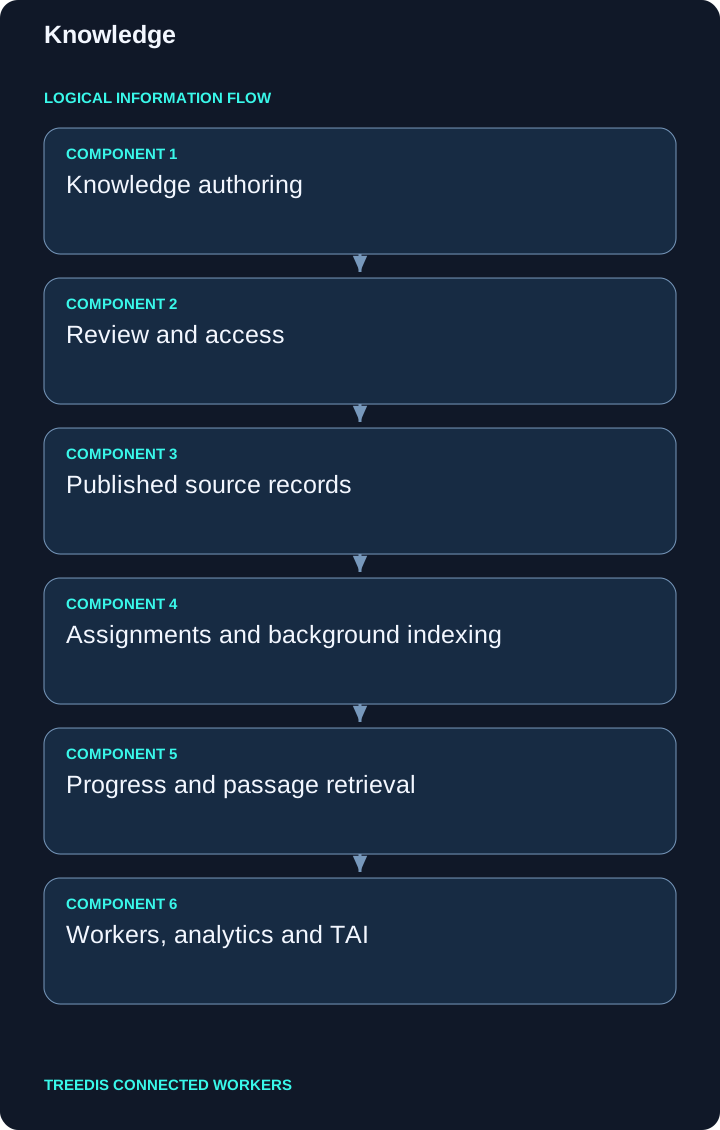
| Stage | Responsibility |
|---|---|
| 1 | Knowledge authoring |
| 2 | Review and access |
| 3 | Published source records |
| 4 | Assignments and background indexing |
| 5 | Progress and passage retrieval |
| 6 | Workers, analytics and TAI |
The diagram describes the logical path through the application. Saved records retain their workspace and relationships. Supported background processing and external synchronization can complete after the initial save.
Tips for better data and TAI context
- Use clear titles and approved revisions.
- Keep steps ordered and decisions explicit.
- Link content to the equipment and location it explains; allow indexing to finish.
Consistent equipment codes, precise location links and readable approved files help TAI retrieve the intended context. A saved record does not mean every attached file has finished indexing. See background indexing for the preparation process.
Check the result
Open the saved record or configuration again. Check its location, equipment links, status and visibility for the intended role. If information is missing, check scope and permissions before adding a duplicate.
Related guides
Connected Workers overview · TAI · Knowledge and search
For help with availability or setup, contact your workspace administrator or support@treedis.com.