TAI Flows (Beta)
TAI Flows is a new way to build Flows on Treedis. Instead of starting from a blank canvas, you give TAI a source — a document or a video — and it drafts the structure of the Flow for you: the steps, the order, the titles, and the descriptions. You stay in charge of the spatial design (where each step lives inside the digital twin) and the conditional logic (what branches when).
Beta. This feature is actively evolving. Expect improvements to step extraction quality and supported input types over the coming releases.
What TAI Flows does (and doesn't) do
TAI Flows handles the structural authoring of a Flow. It does not build a complete, production-ready Flow end to end.
| TAI Flows handles for you | You still do |
|---|---|
| Drafting the list of steps | Anchoring steps to positions in the 3D tour |
| Naming each step and writing descriptions | Defining conditional / branching logic |
| Connecting steps in a sensible default order | Reviewing and editing the generated content |
| Generating thumbnails from video frames | Publishing when you're ready |
Think of it as a smart first draft — the boring scaffolding work is done, and you focus on the parts that need human judgment.
Supported inputs
You can generate a Flow from either of these, or both combined:
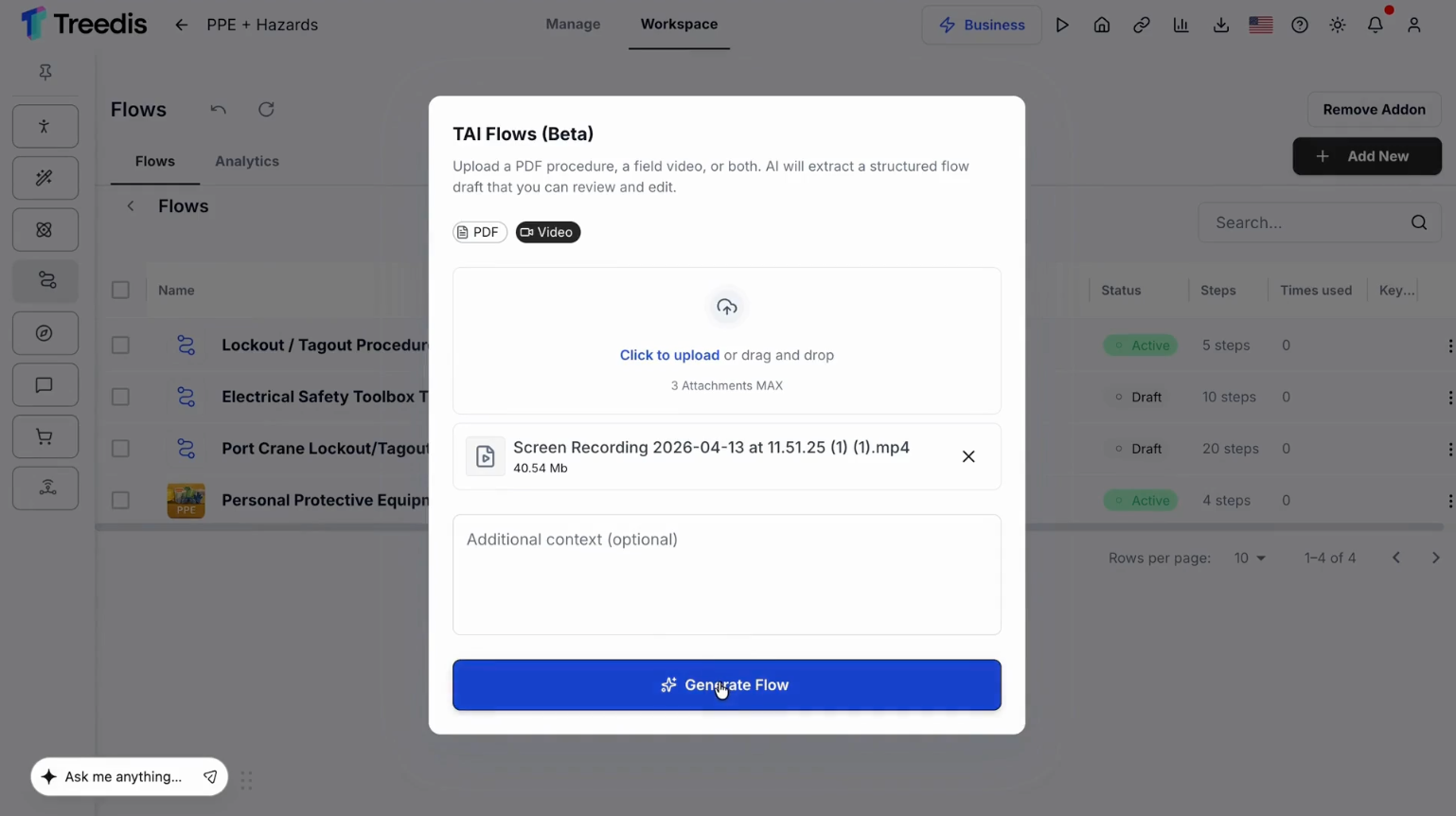
- PDF — An SOP, a checklist, a training manual, or any structured document. TAI extracts the steps and the logic.
- Video — A walkthrough of the procedure. A casual phone recording works; you don't need a polished production. TAI extracts steps from the narration and pulls a thumbnail for each step from the footage.
Generate a Flow with TAI
From your project, open the 3D Editor and make sure the Flows addon is enabled.
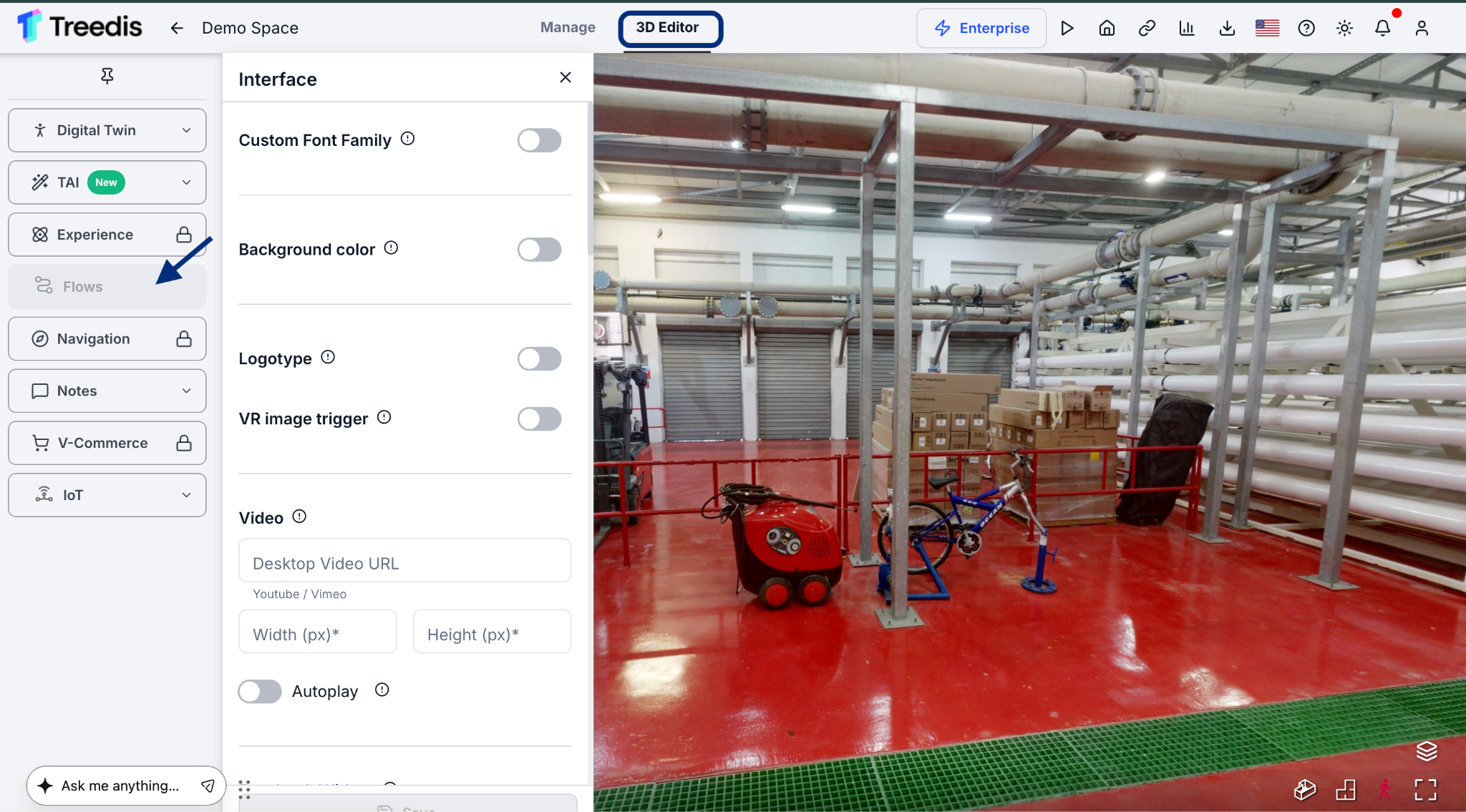
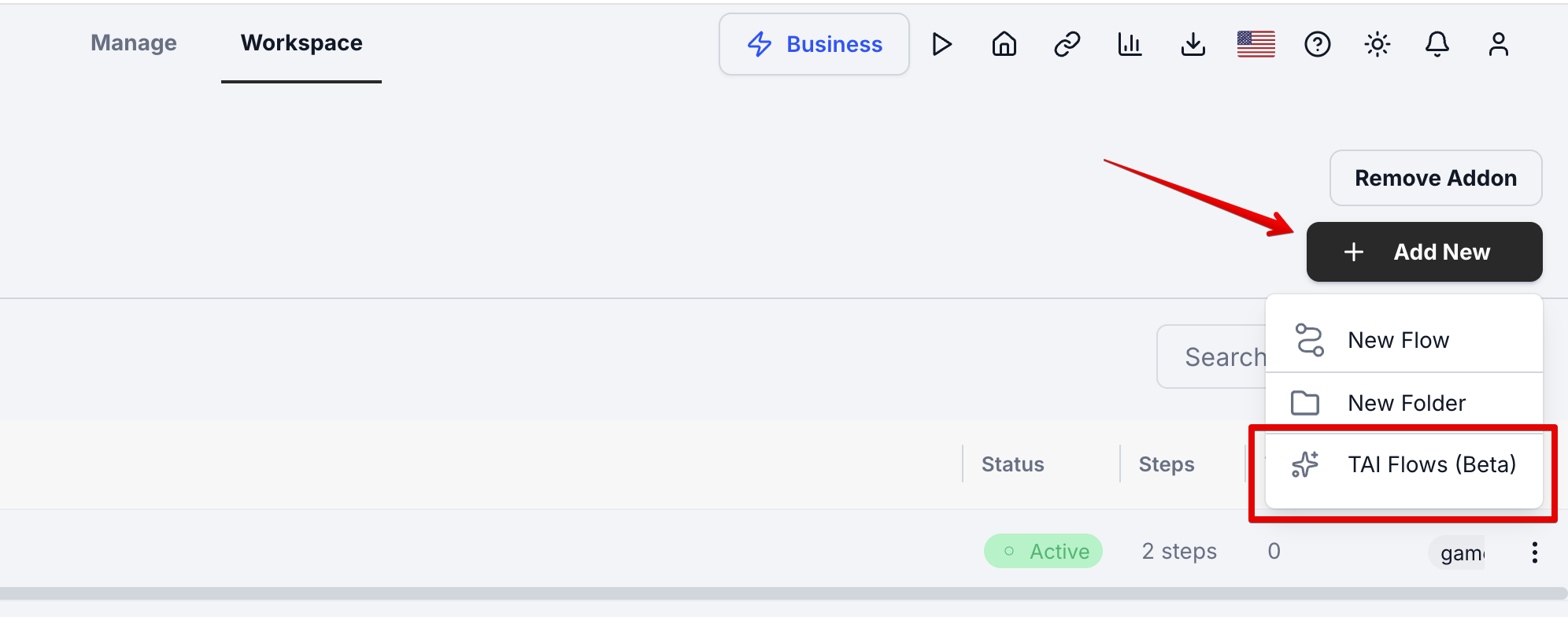
When creating a new Flow, choose TAI Flows as the creation method.
Upload a PDF, a video, or both. Then click Generate Flow.
TAI shows you a preview of the steps and their order before anything is saved. This is your chance to sanity-check the structure.
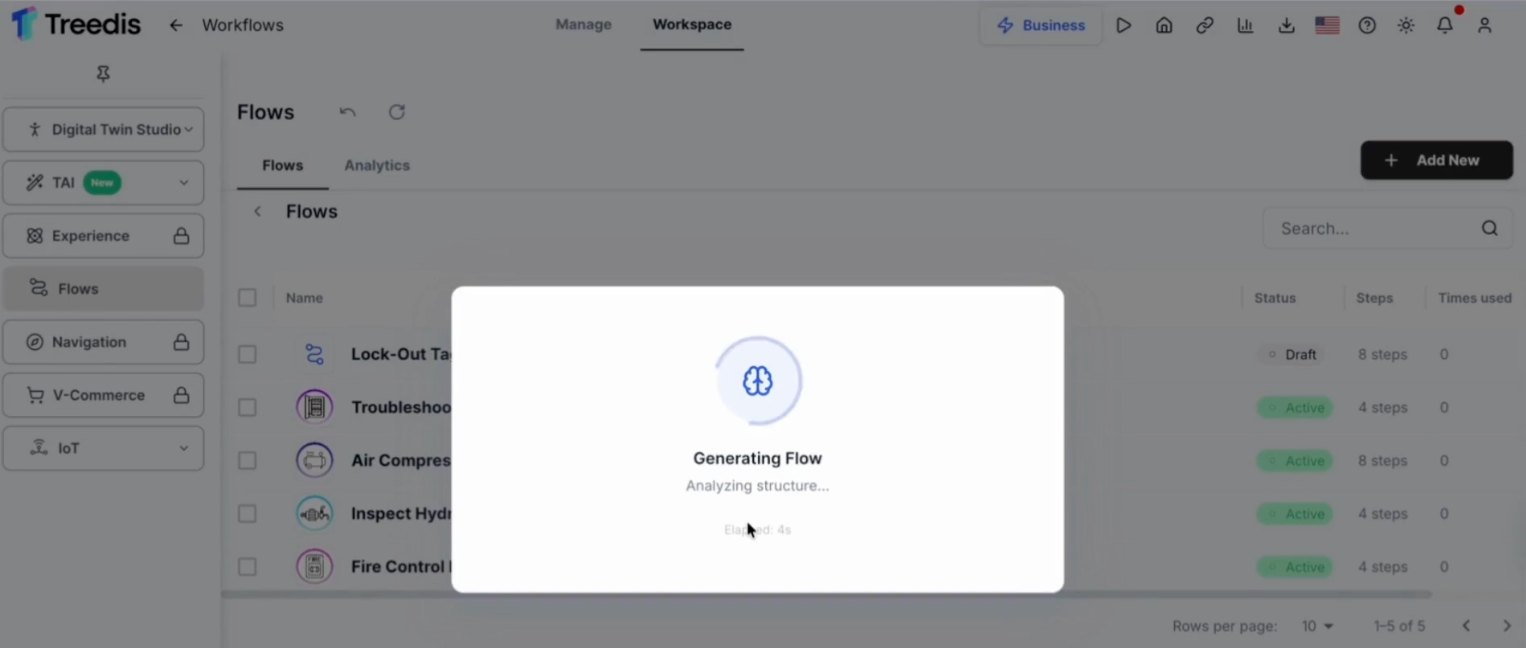
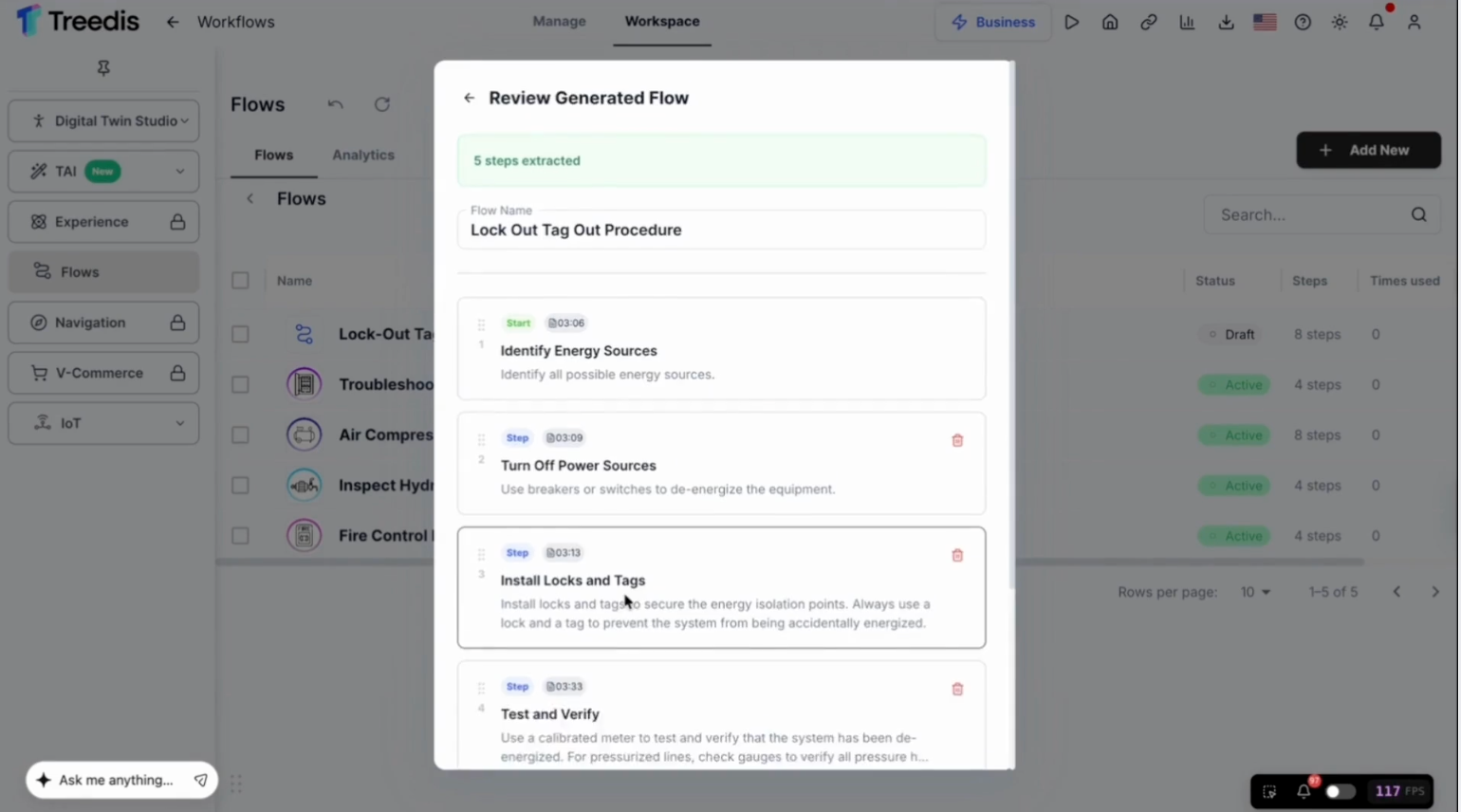
Once confirmed, the Flow is created as an unpublished draft. Nothing is live yet, so you can iterate safely.
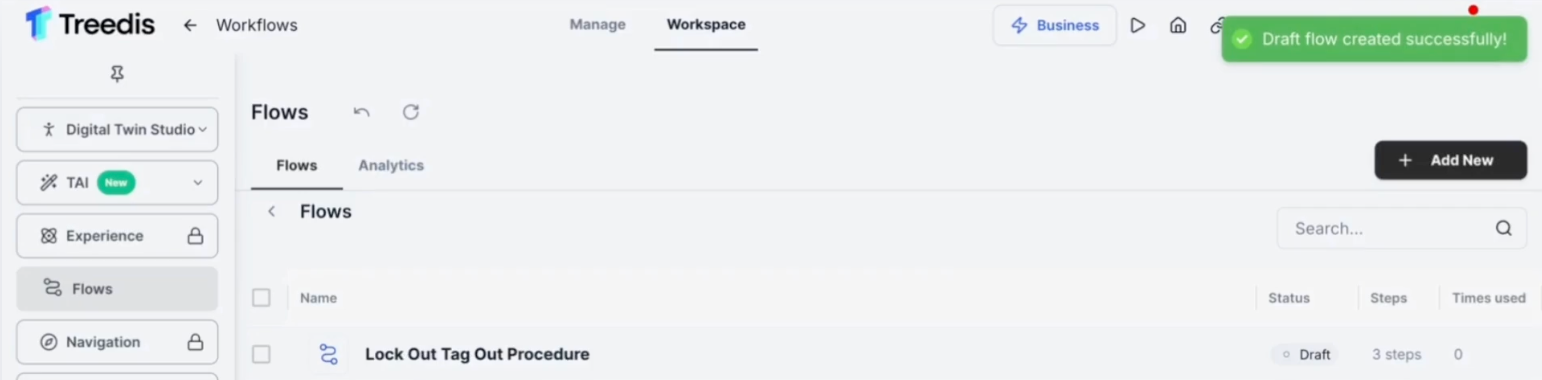
The draft opens with all steps pre-populated — titles, descriptions, and thumbnails included. Now you:
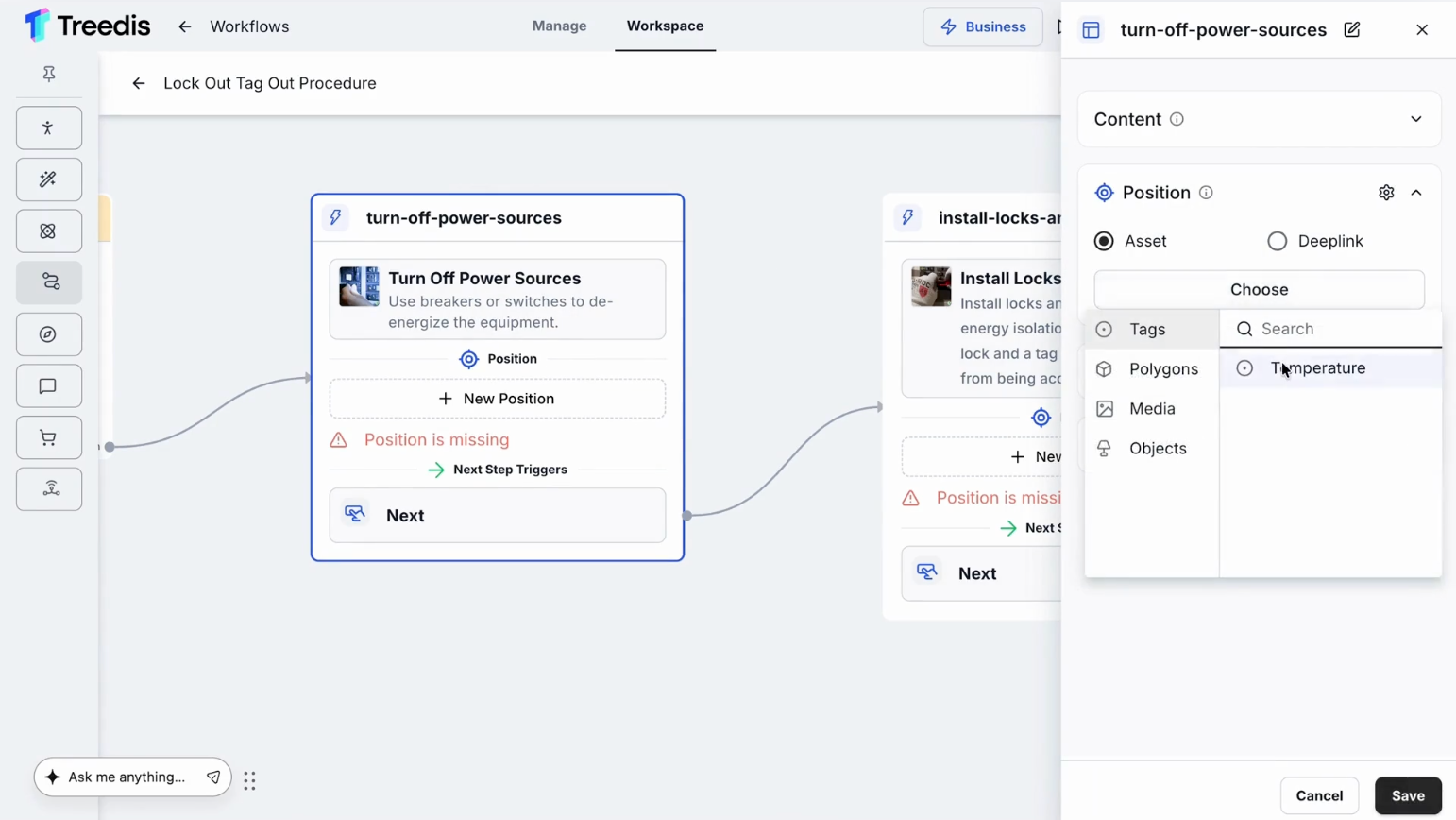
- Connect each step to its position in the digital twin
- Add any conditional branching
- Edit titles, descriptions, or media as needed
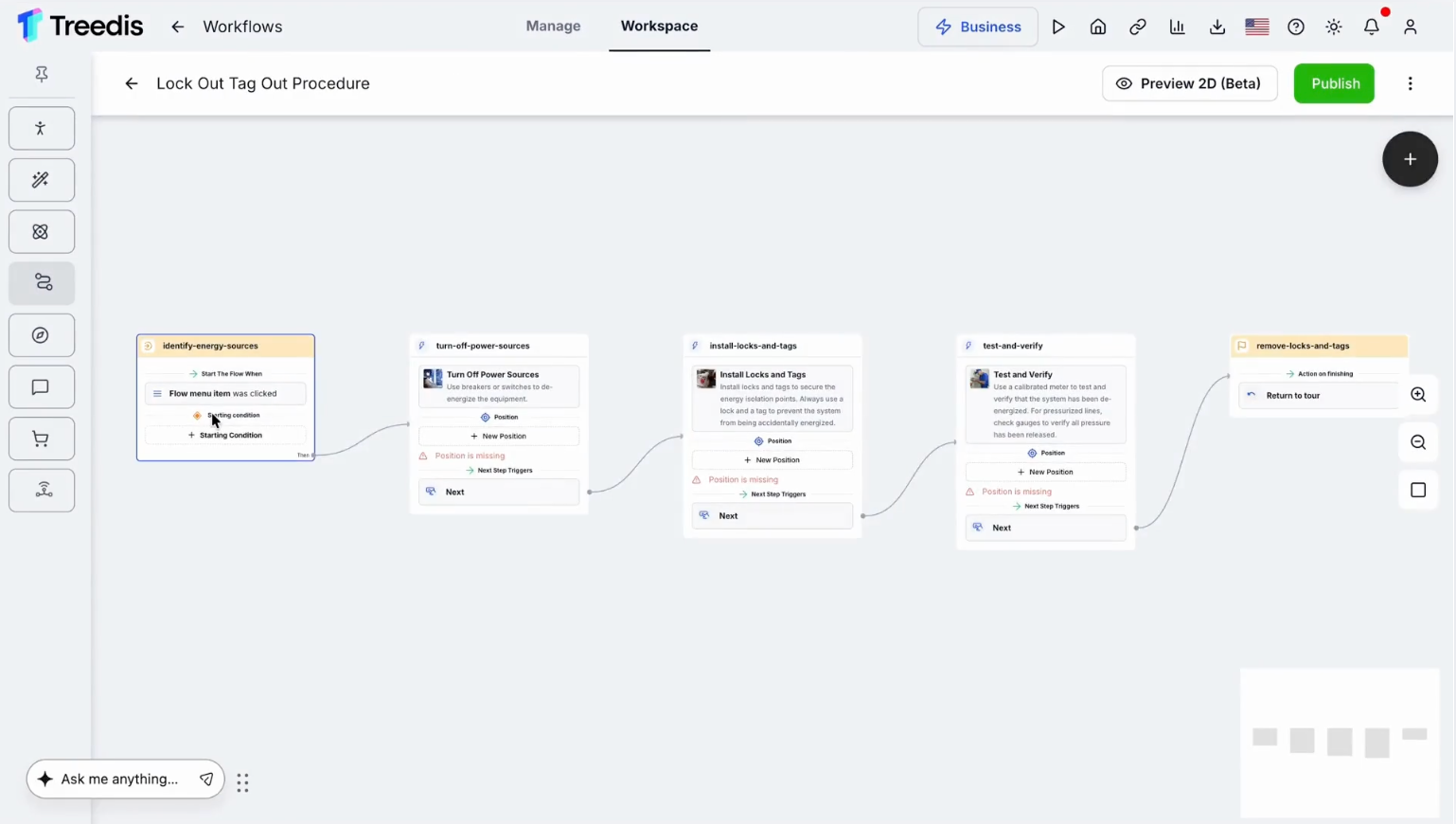
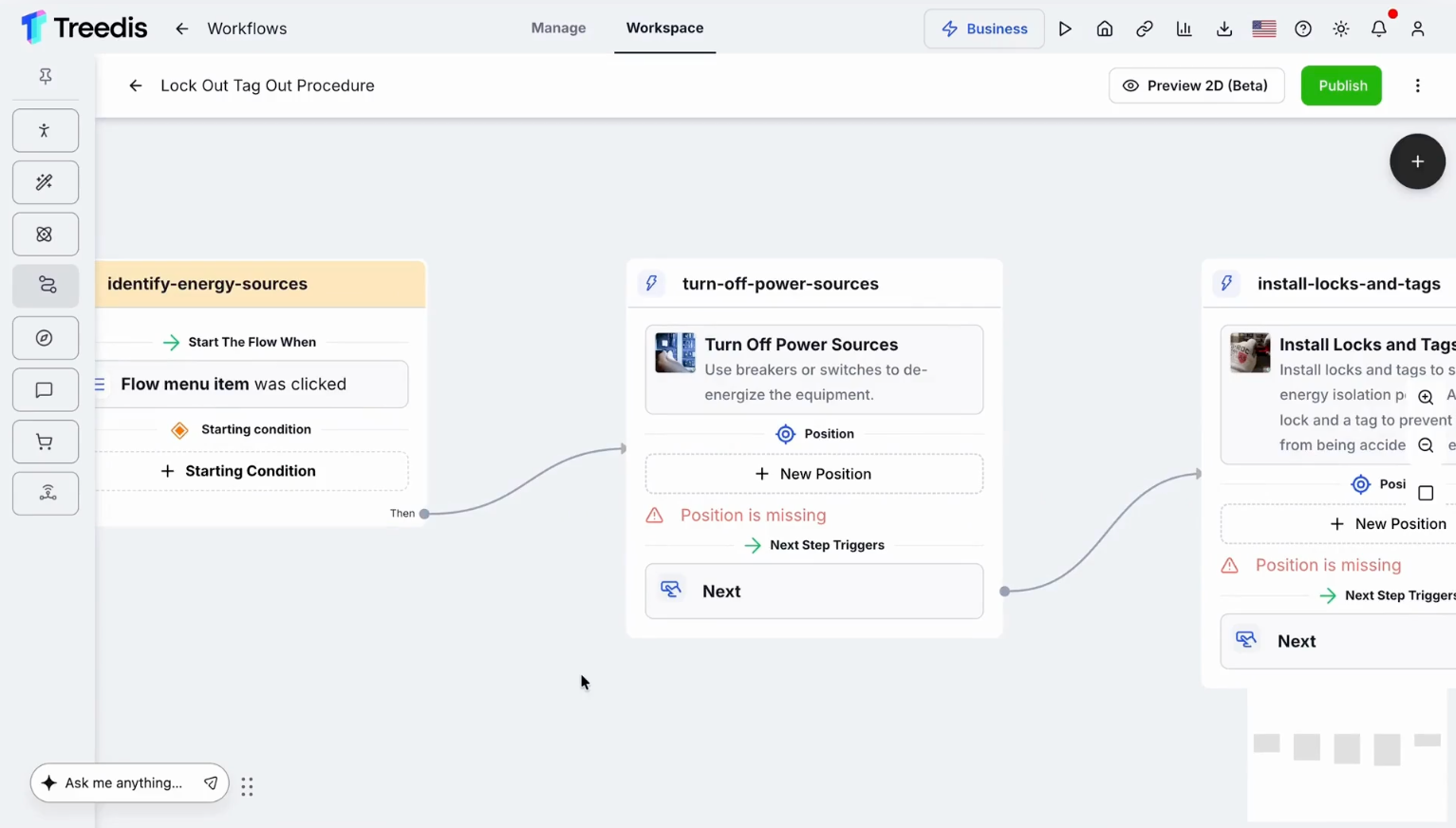
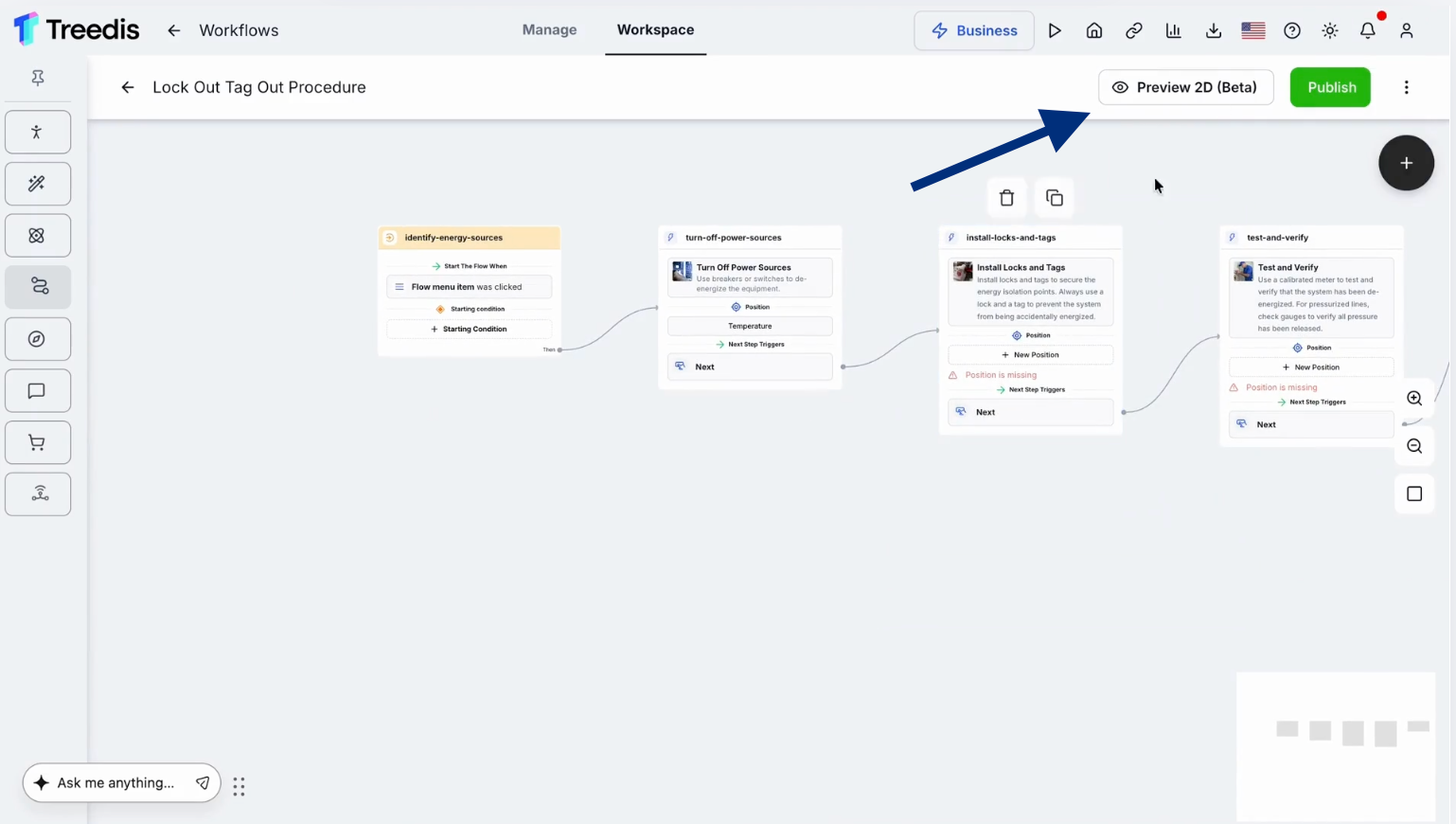
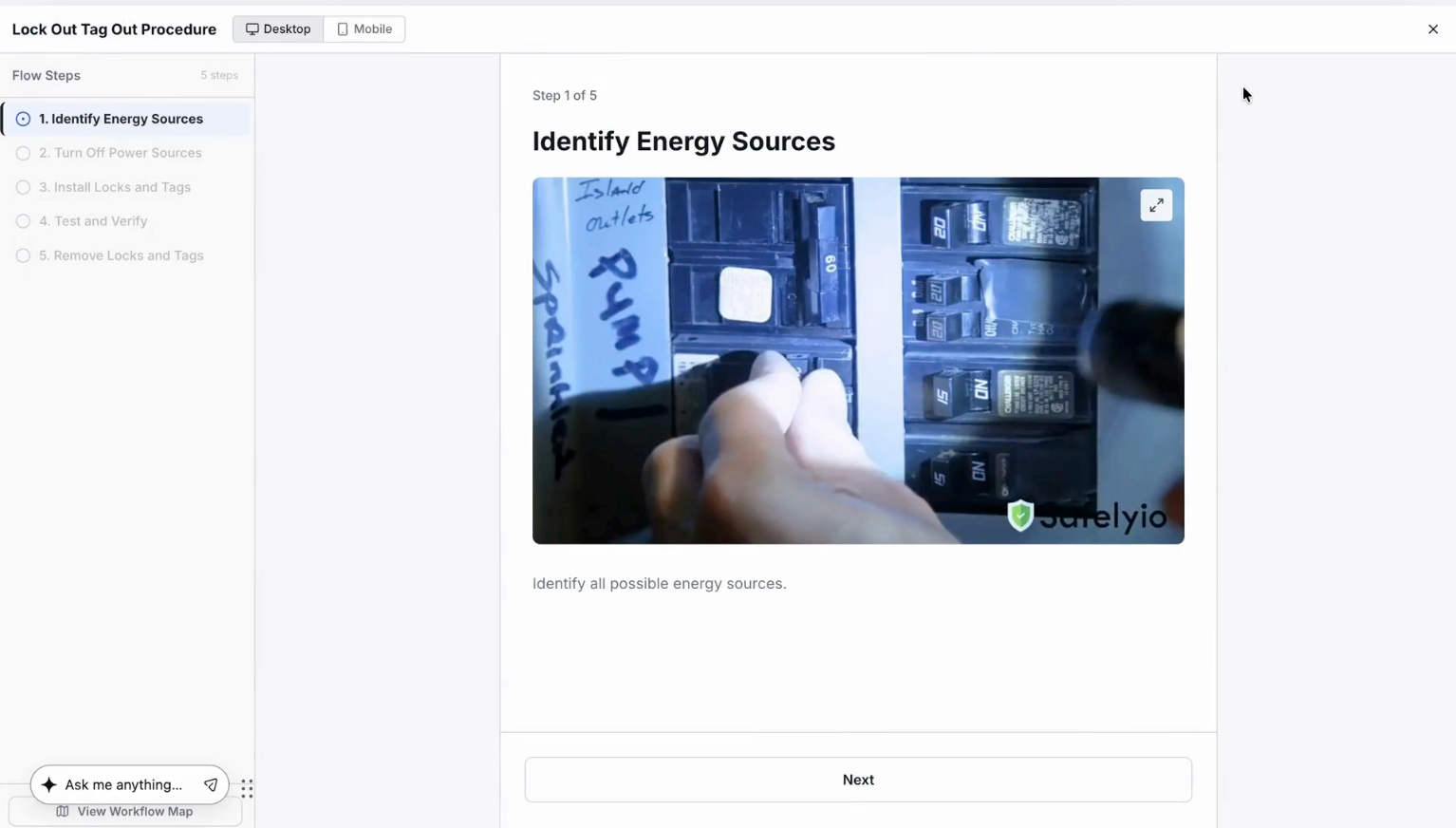
Use the 2D Preview for a top-down overview of the whole Flow. It's the fastest way to verify that the structure makes sense before going live.
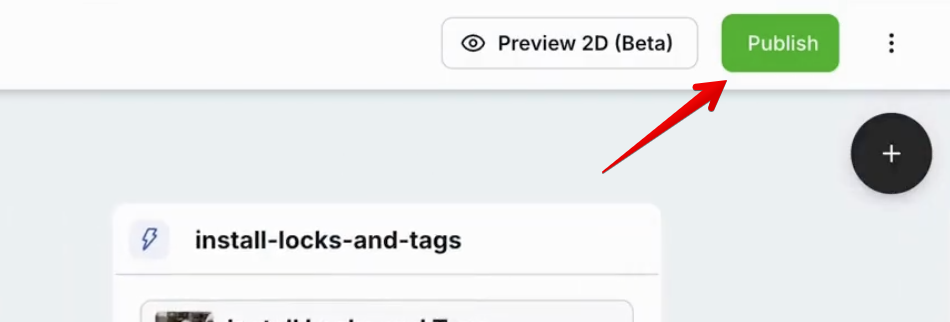
When the Flow is ready, publish it like any other Flow.
Tips for better results
- Be explicit in your source. Numbered steps and clear section headings in a PDF map cleanly to Flow steps. A video with a narrator describing each step ("now we open the panel…", "next, we check the gauge…") produces cleaner extraction than silent footage.
- Combine inputs when it helps. A PDF gives you the canonical step list; a video gives you visual context and thumbnails. Uploading both can give you the best of each.
- Treat the draft as a starting point. TAI gives you 70–80% of the structural work. The remaining 20–30% — spatial anchoring and branching — is where domain expertise matters most.
FAQ
Is anything published automatically? No. TAI Flows always creates a draft. You decide when (and whether) to publish.
Can I edit a TAI-generated Flow like a regular one? Yes. Once generated, the Flow behaves exactly like any other Flow — every standard editing capability is available.
Does TAI replace the manual Flow builder? No. The manual builder is still there for cases where you'd rather start from scratch or work without a source document.
What input formats does TAI support today? PDF documents and standard video formats. Support continues to expand during the beta.
Need help?
If TAI Flows isn't producing the results you expect, or if you'd like to share feedback on the beta, contact us at support@treedis.com.